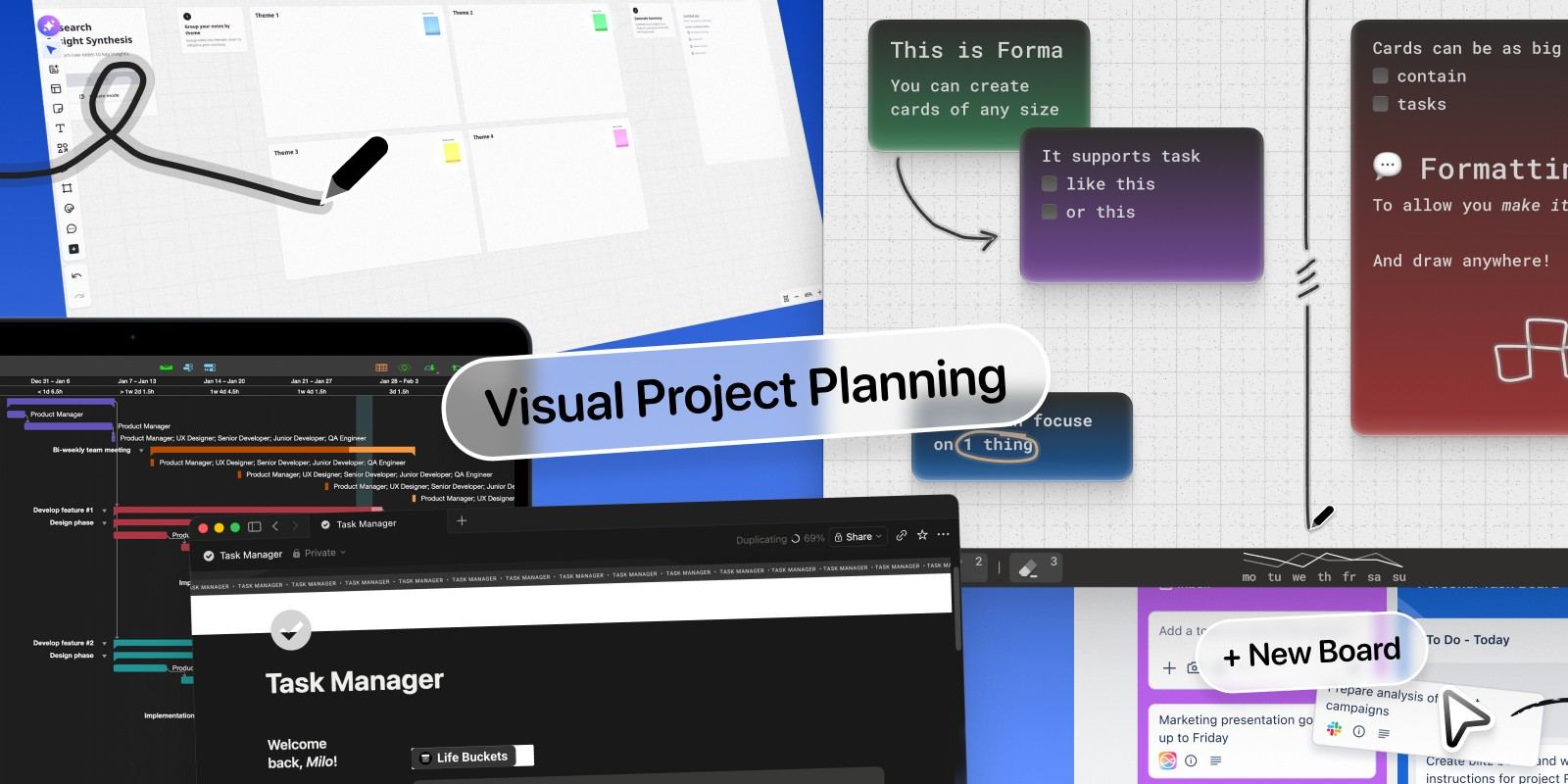
A project plan that lives in a spreadsheet or a long document is easy to write and hard to use. You can't see what matters, what's blocked, or what comes next without reading the whole thing. Visual project planning fixes that: instead of rows of text, you lay the project out as something you can take in at a glance — a timeline, a board of cards, a map of ideas.
The right visual project planning software depends on what kind of project you're running. A construction schedule with dependencies needs a Gantt chart. A team shipping features week to week needs a Kanban board. A solo creator planning a launch needs a flexible space where ideas and tasks sit side by side. This guide covers the main ways to visualize a project plan, the best tool for each, and a simple template you can use today.
What Is Visual Project Planning?
Visual project planning is the practice of mapping out a project's goals, tasks, timeline, and progress in a visual format — boards, charts, maps, or canvases — rather than in text lists. A visual project plan shows how pieces of the work relate to each other: what's done, what's in progress, what depends on what, and where the deadlines are.
It works because people process visual information faster than text. When every task is a card you can move, or a bar on a timeline, the shape of the project is obvious — and so are the gaps.
5 Ways to Visualize a Project Plan
Most project plan visualization falls into one of five formats. Each answers a different question about your project.
Gantt Chart: When Will Everything Happen?
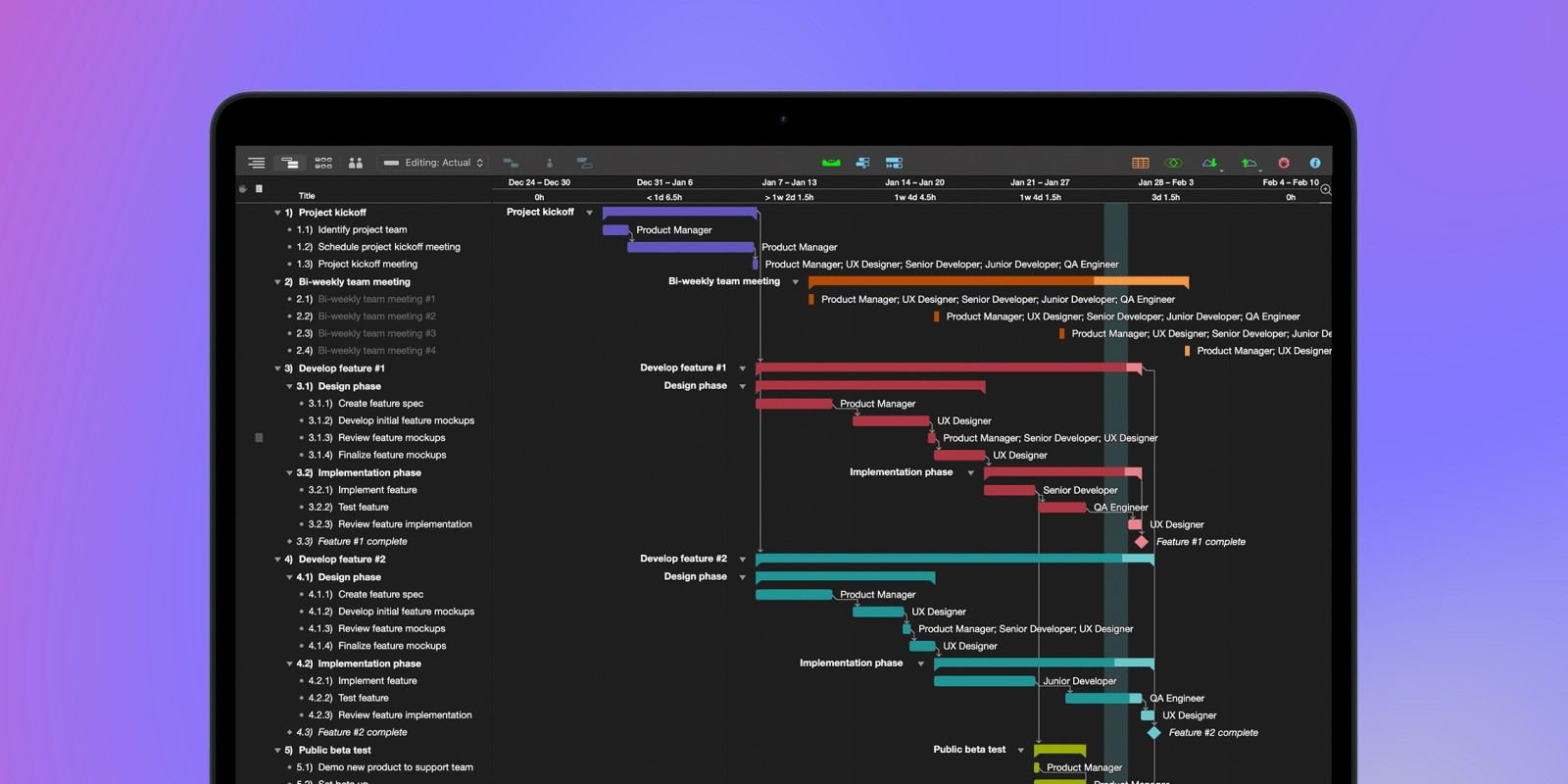
A Gantt chart is a popular visual tool for planning and scheduling simple projects. It shows each task as a horizontal bar on a timeline, so you can see start dates, end dates, overlaps, and dependencies at once. Gantt charts are the best project plan visualization when deadlines and task order matter most — events, construction, product launches with fixed dates.
Kanban Board: What Stage Is Each Task In?
A Kanban board splits work into columns like To do, Doing, and Done, with each task as a card that moves across. It's the clearest way to see the status of work in progress, and it's ideal for ongoing work without a fixed end date.
Mind Map: How Does the Work Break Down?
A mind map starts from a central goal and branches out into phases, deliverables, and tasks. It's best at the very start of a project, when you're figuring out the scope. Our guide to the best mind mapping software for Mac covers the dedicated tools.
Timeline or Roadmap: What's the Big Picture?
A roadmap shows major milestones and phases over months or quarters, without the task-level detail of a Gantt chart. It's the right format for sharing a plan with stakeholders who need the big picture.
Canvas Board: How Does It All Fit Together?
A canvas board is a free-form space where notes, tasks, sketches, and references sit wherever they make sense. It combines the strengths of the other formats — you can make columns like a Kanban board, branch ideas like a mind map, or lay out phases like a roadmap — without locking you into one structure. It's the most flexible way to plan visually, especially for solo work and creative projects. Our comparison of the best canvas apps for Mac covers the main options.
Forma: Best for Solo Visual Project Planning on Mac
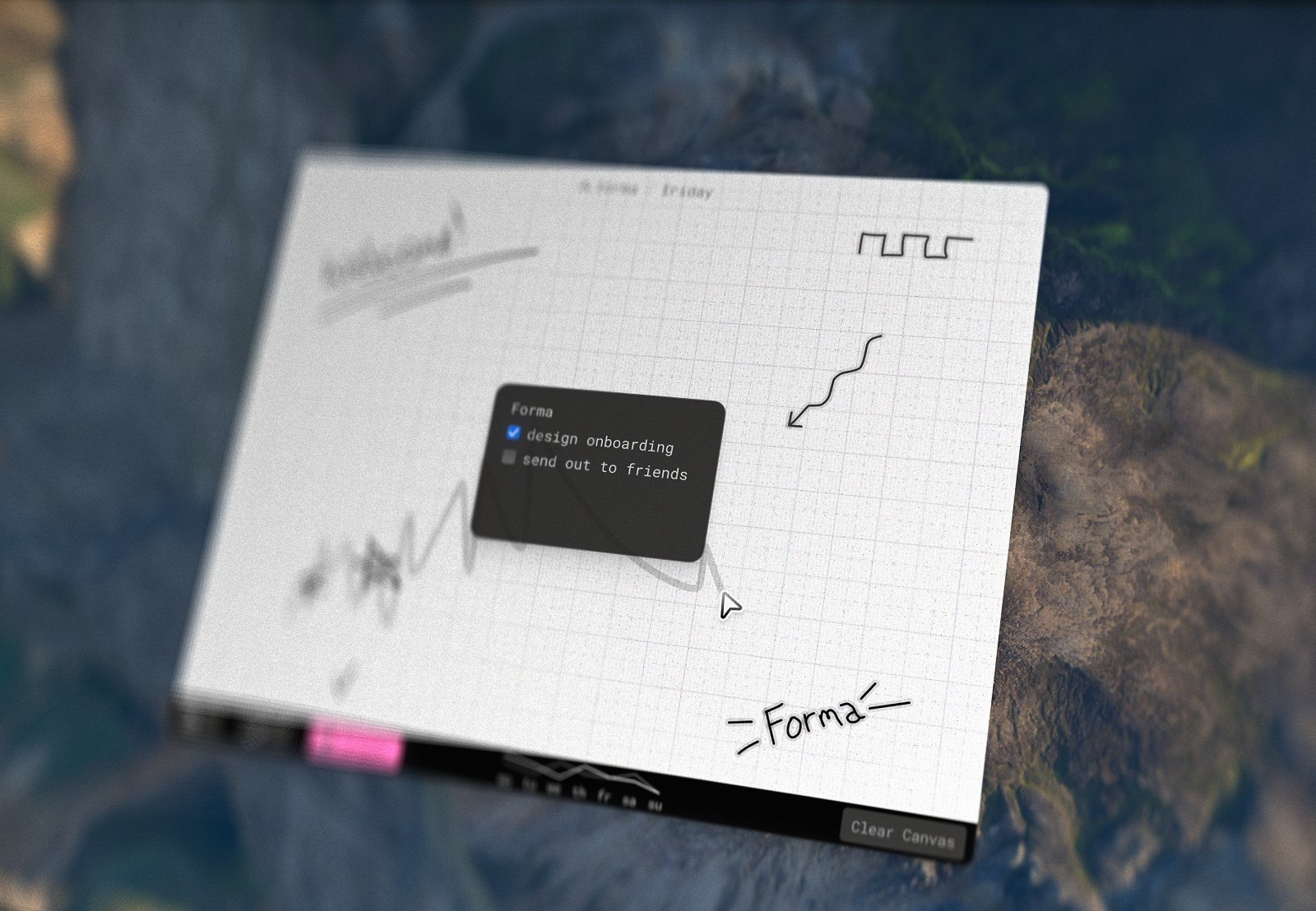
Forma is a native Mac app built around canvas boards — and it's designed for the part of visual project planning that most tools make awkward: keeping your thinking and your tasks in the same place.
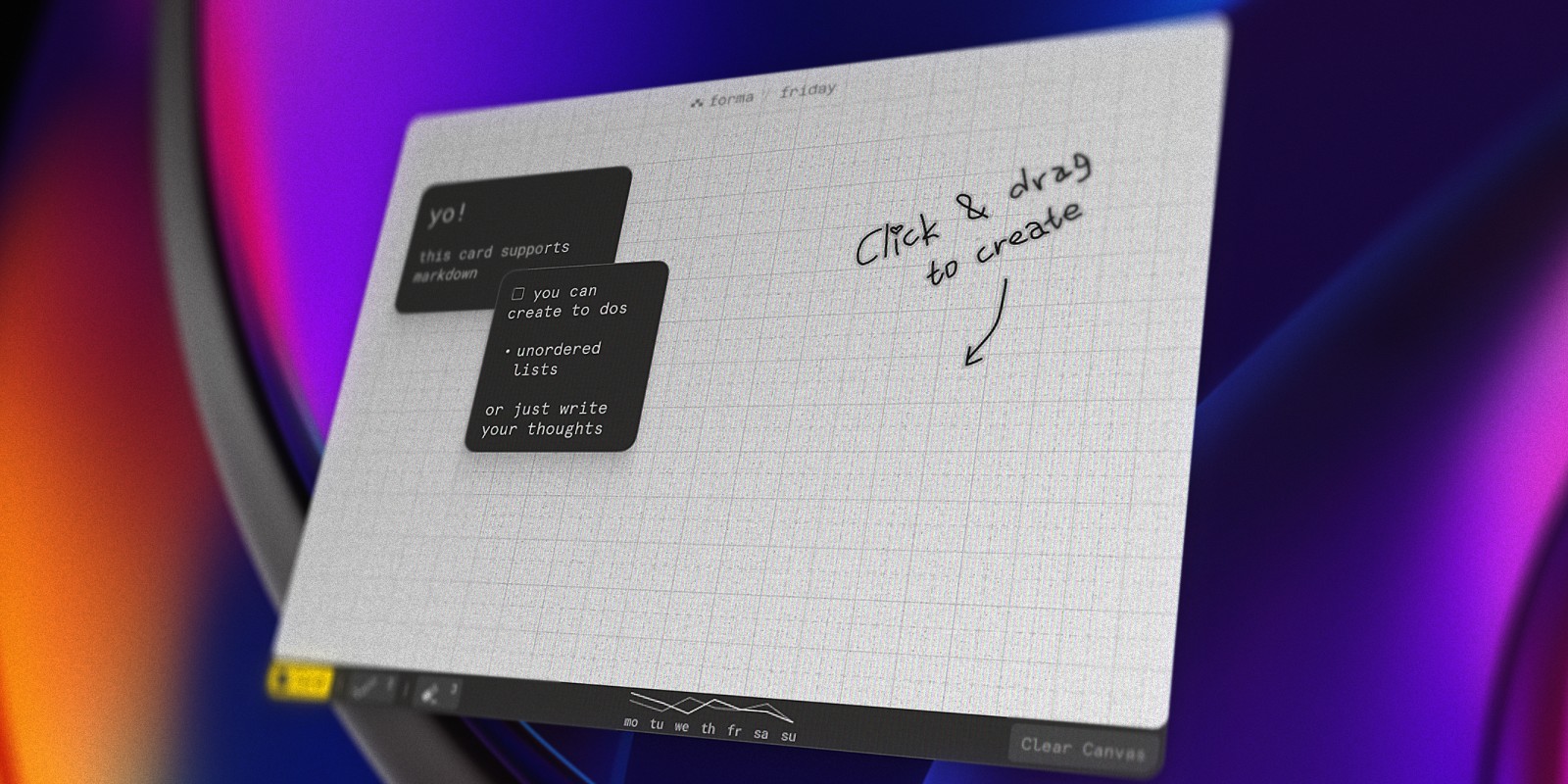
You create a board for each project and click and drag to add cards anywhere on it. Every card can be a note, a task, or both, with Markdown formatting inside. That means one board can hold your project goals, your rough ideas, your research, and your to-do list — and a card can move from "idea" to "task" without being copied into another app.
The canvas adapts to whatever planning format suits the project. Line cards up in columns for a Kanban-style board. Cluster them around a central goal for a mind-map-style breakdown. Lay them left to right for a simple roadmap. Snap to grid keeps layouts tidy, color cards let you code tasks by priority, phase, or owner, and the marker tool lets you draw arrows, circle what's urgent, and annotate directly on the board. A built-in productivity chart shows how much you're getting done each day.
Forma is local-first: it works fully offline, needs no account, and syncs your boards between your Macs through iCloud (you can turn that off). It's a one-time purchase with no subscription.
The trade-offs: Forma is built for individuals, not team collaboration, and it doesn't do Gantt charts, due-date scheduling, or task dependencies. If your project lives or dies by dates and dependencies, pair it with a scheduling tool or use OmniPlan.
Best for: Solo creators, freelancers, designers, and developers who plan projects visually on a Mac and want ideas and tasks on one canvas.
OmniPlan: Best Gantt Chart Software for Mac
OmniPlan is the most capable native Mac app for Gantt-style project plan visualization. It handles everything traditional project management needs: task dependencies, critical path highlighting, resource allocation and leveling, baselines to compare your plan against reality, and milestone tracking. It runs on Mac, iPhone, iPad, and Apple Vision Pro.
That power comes with a learning curve and a price. OmniPlan 4 Standard is a one-time purchase at $199.99, and Pro (which adds advanced features like Monte Carlo simulation) is $399.99 — or you can subscribe instead. A free trial is available.
Best for: Project managers who need professional Gantt charts, dependencies, and resource planning on a Mac.
Miro: Best for Collaborative Visual Planning
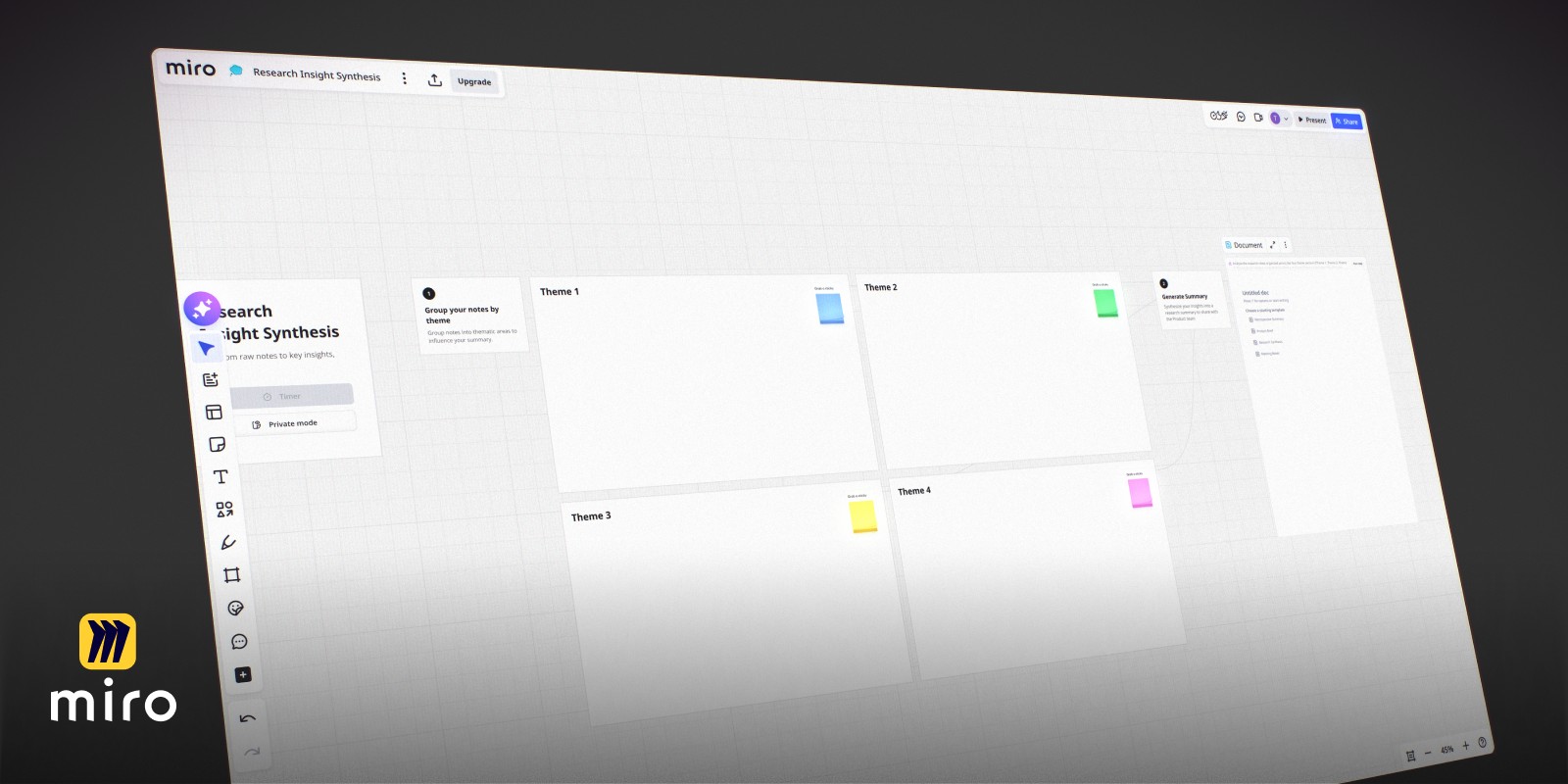
Miro is an online whiteboard used by teams for workshops, brainstorming, and visual project planning. Its template library includes Gantt charts, Kanban boards, roadmaps, user story maps, and sprint planning boards, so a team can go from a brainstorm to a visual project plan on the same infinite board.
The free plan includes three editable boards, which is enough to try it on a real project. The Starter plan costs around $8 per member per month billed annually and removes the board limit. Miro works in the browser and has a Mac app, but it's cloud-based and requires an account and internet connection. For how it stacks up against FigJam, Freeform, and Excalidraw, see our guide to the best whiteboard apps for Mac.
Best for: Teams that plan projects together in workshops and want a shared visual space with ready-made templates.
Trello: Best Simple Kanban Board
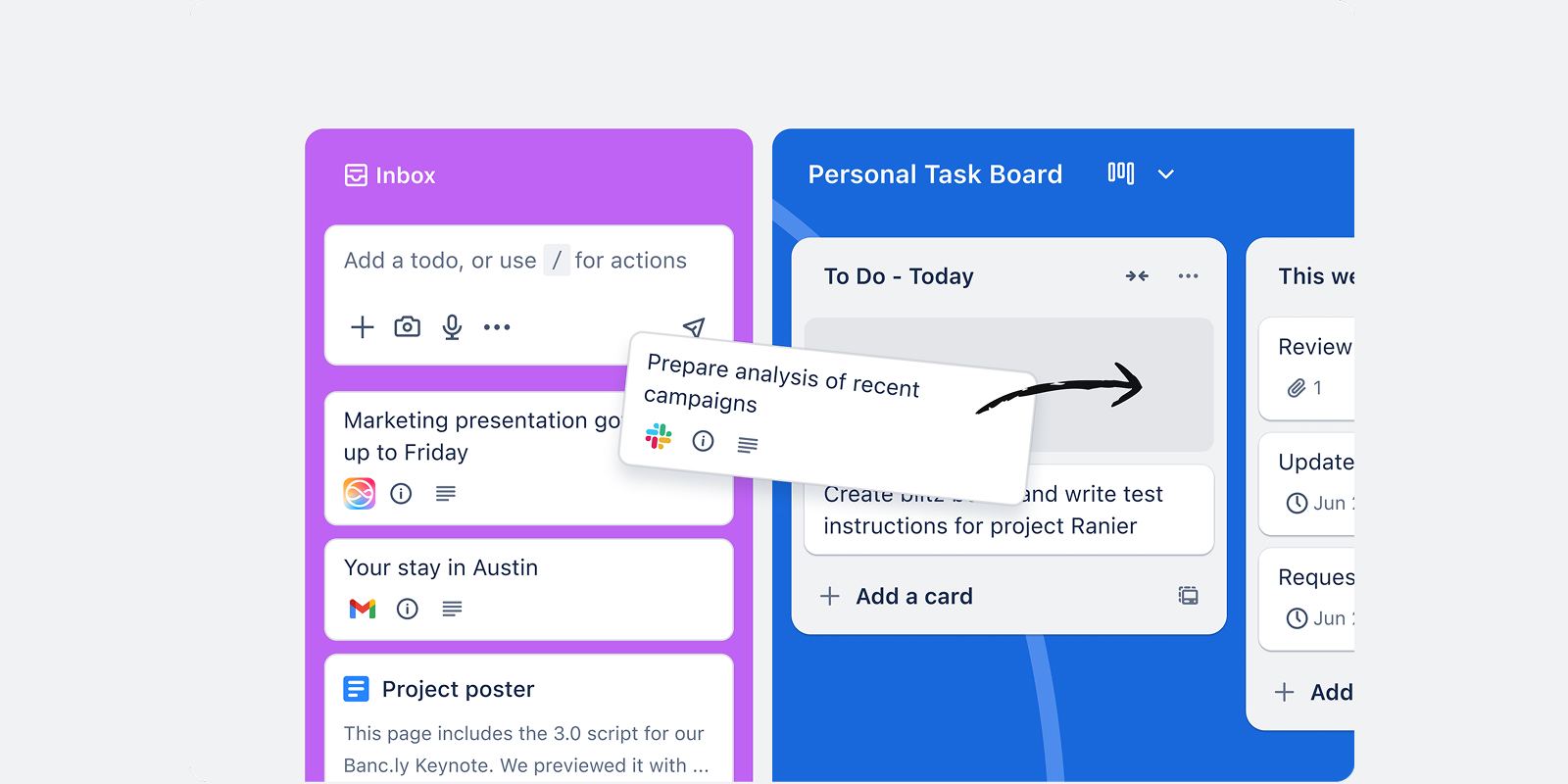
Trello is the classic Kanban tool: boards made of lists, with cards you drag from one list to the next. Cards can hold checklists, due dates, attachments, labels, and assignees, and automation rules can move cards for you. It's one of the easiest visual project planning tools to learn — most people are productive in minutes.
Trello's free plan includes up to 10 boards per workspace and unlimited cards. Standard costs around $5 per user per month billed annually, and Premium adds extra views like Timeline and Calendar for seeing the plan over time.
Best for: Small teams and individuals who want a simple Kanban board for tracking tasks through stages.
Notion: Best for Plans That Need Docs and Data
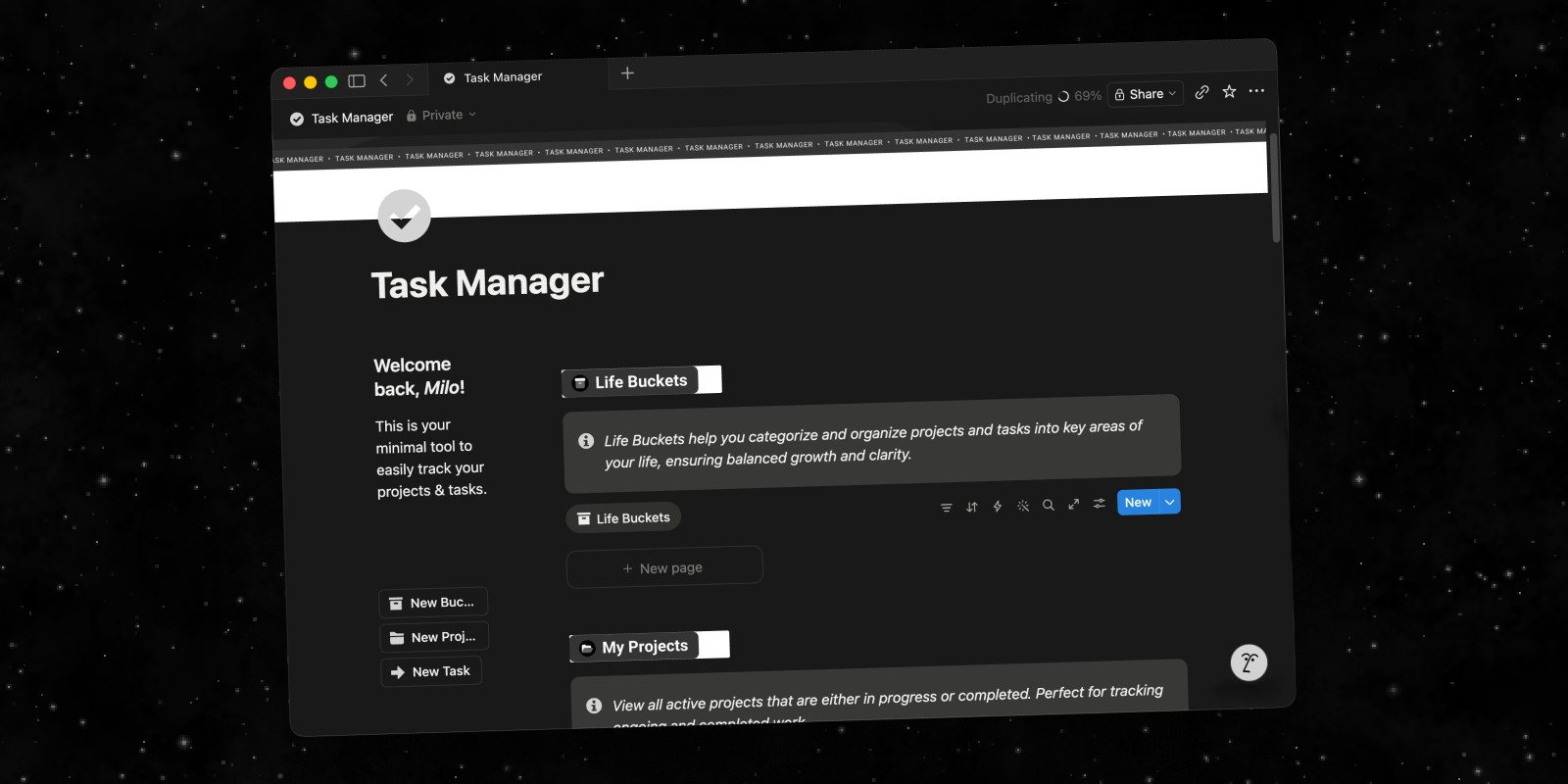
Notion lets you build a project plan as a database and then view it several ways: as a table, a Kanban board, a calendar, or a timeline that works like a lightweight Gantt chart. Because it's also a document editor, your project briefs, meeting notes, and specs can live right next to the plan.
The flexibility means setup takes time — you build your own system rather than getting one out of the box. The free plan is generous for individuals; the Plus plan is around $10 per member per month billed annually. Notion is cloud-based and requires an account.
Best for: Teams that want project plans, documentation, and knowledge in one connected workspace.
Apple Freeform: Best Free Option on Mac
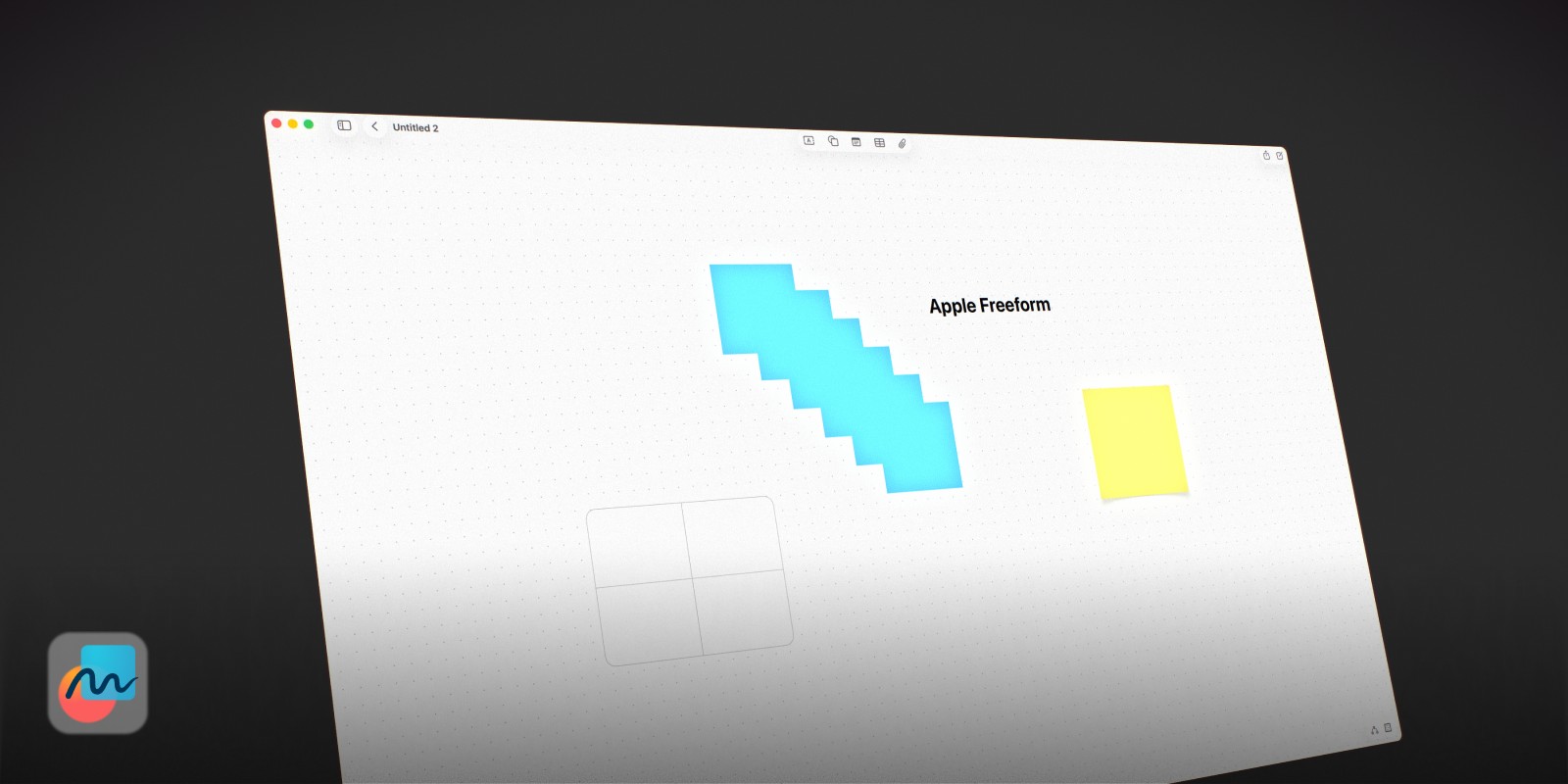
Freeform comes free with every Mac, iPhone, and iPad. It's an infinite whiteboard with sticky notes, shapes, connector lines, images, and drawing — enough to sketch a simple visual project plan, a rough timeline, or a Kanban layout made from sticky notes. It syncs via iCloud and supports collaboration with other Apple users.
What it lacks is anything task-specific: sticky notes can't be checked off, and there are no dates, statuses, or progress tracking. It's a good place to start planning, but the plan doesn't help you execute it. If you outgrow it, our guide to the best Apple Freeform alternatives covers what's next.
Best for: Quick, free visual planning sketches on Apple devices.
How to Create a Visual Project Plan in 6 Steps
Whichever tool you use, the process is the same.
1. Define the goal. Write one sentence describing what "done" looks like. Put it at the top or center of your board so every other piece of the plan connects back to it.
2. Dump everything you know. Add a card or note for every task, idea, question, and resource that comes to mind. Don't organize yet — getting it all out of your head comes first.
3. Group into phases or workstreams. Cluster related cards together: research, design, build, launch. Each group becomes a section of your plan.
4. Choose your view. If dates and dependencies matter most, turn the groups into a Gantt chart. If the work flows through stages, arrange cards into Kanban columns. If the plan is still evolving, keep it as a canvas.
5. Mark priority and status. Use color to show what's urgent, what's blocked, and what's done. A visual plan only works if its status is visible at a glance.
6. Review and move cards weekly. A visual project plan is a living thing. Move finished cards, add new ones, and re-group as the project changes.
A Simple Visual Project Plan Template
If you want a starting point, this layout works for most solo and small-team projects on any canvas or whiteboard tool:
Top of the board: Goal. One card with the project goal and the deadline, if there is one.
Left column: Ideas and research. Loose notes, links, references, and questions. Nothing here is a commitment yet.
Middle columns: To do, Doing, Done. Task cards move left to right as work progresses. Keep the Doing column short — three to five cards — so you stay focused.
Right side: Milestones. A short vertical list of the key dates or deliverables, in order.
Colors: One color per phase or priority level, used consistently.
In Forma, you can build this template on a board in a couple of minutes: drag out the column cards, turn snap to grid on to keep everything aligned, and convert idea cards into task cards as they become real work. Draw arrows with the marker tool to show what depends on what.
Which Visual Project Planning Tool Should You Use?
If you plan solo on a Mac and want ideas and tasks together: Forma.
If you need professional Gantt charts and dependencies: OmniPlan.
If you plan with a team in workshops: Miro.
If you just need a simple Kanban board: Trello.
If you want plans connected to documents: Notion.
If you want something free and already installed: Apple Freeform.