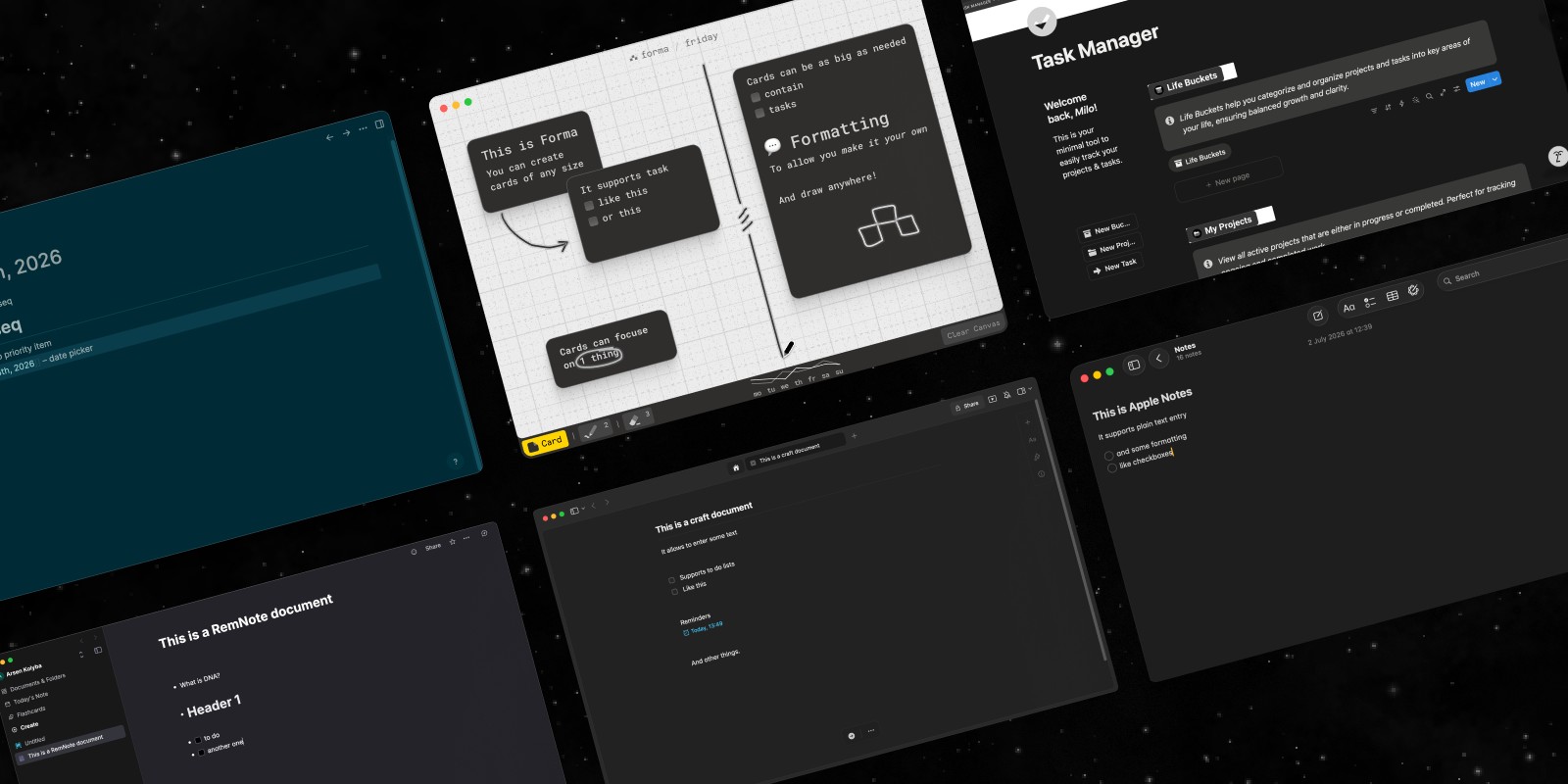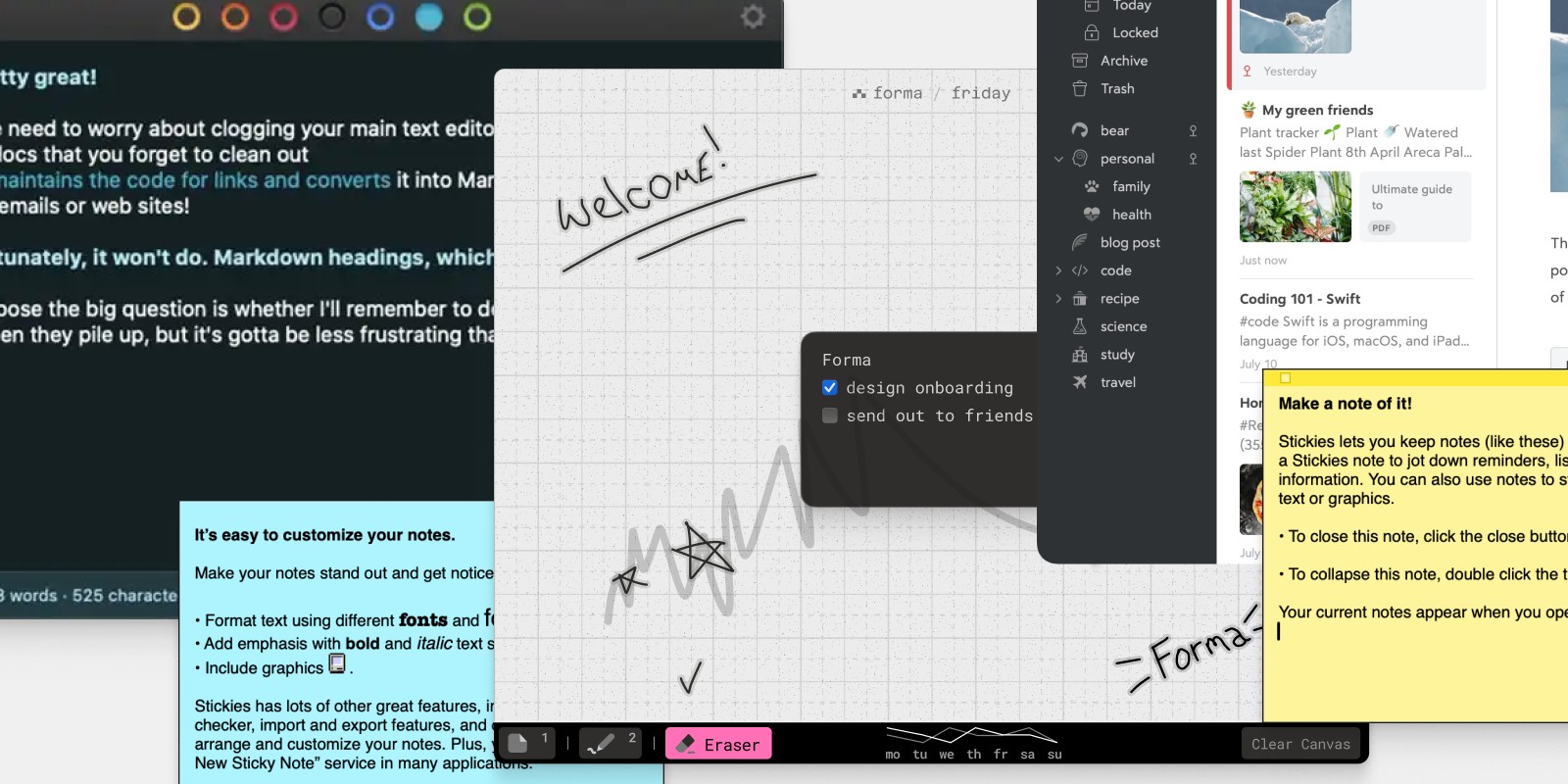
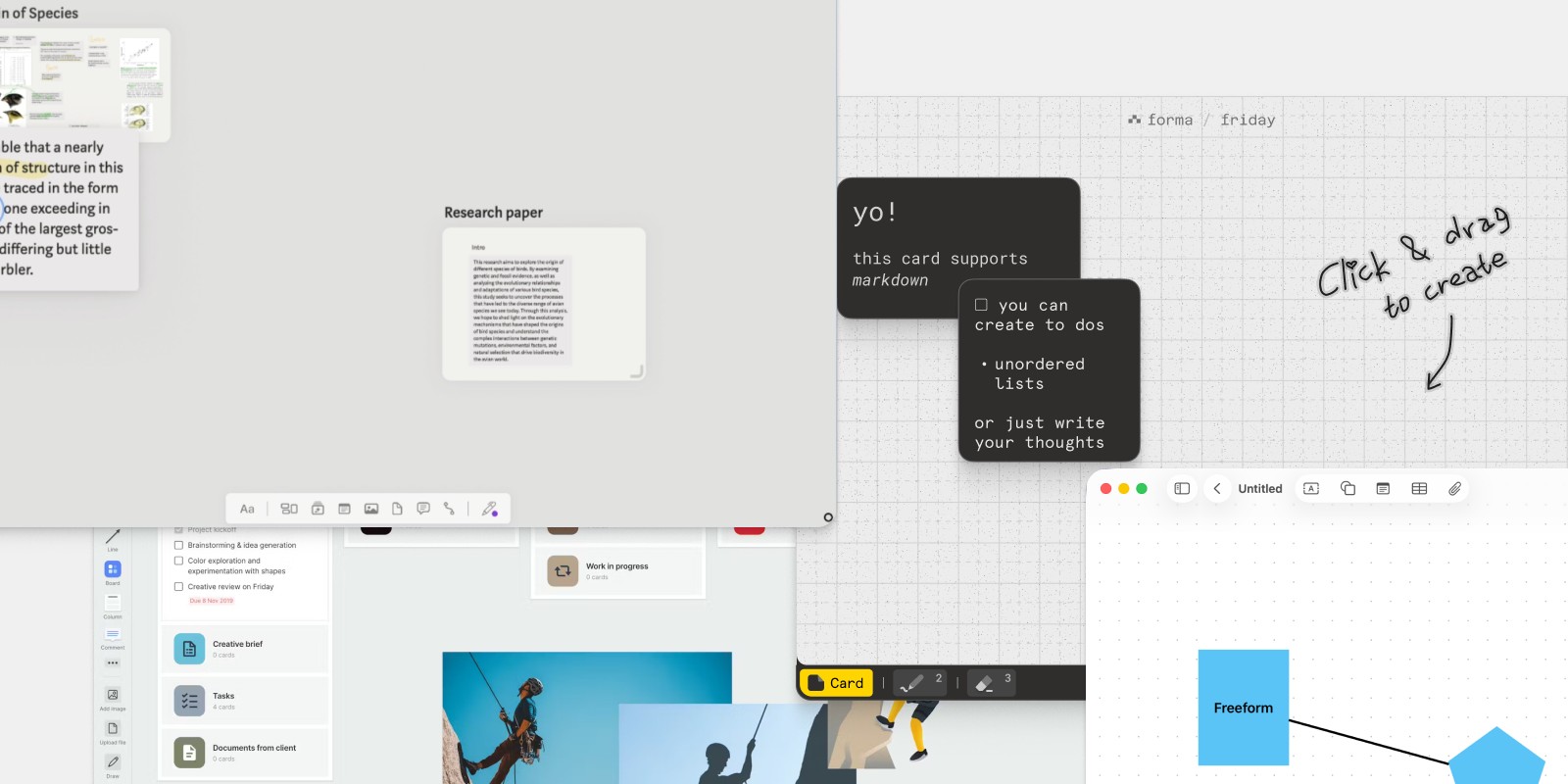
If you've been looking for a canvas app for macOS, you already know the problem with most productivity tools: they're built around lists, documents, and folders — rigid structures that force your thinking into a shape it doesn't naturally take. A canvas app works differently. It gives you open space to place ideas wherever they belong, move them around, and see the whole picture at once.
The question is which one is actually worth using on a Mac. There are a handful of solid options, and they serve meaningfully different types of users. Here's an honest breakdown.
Apple Freeform: Built In, But Basic
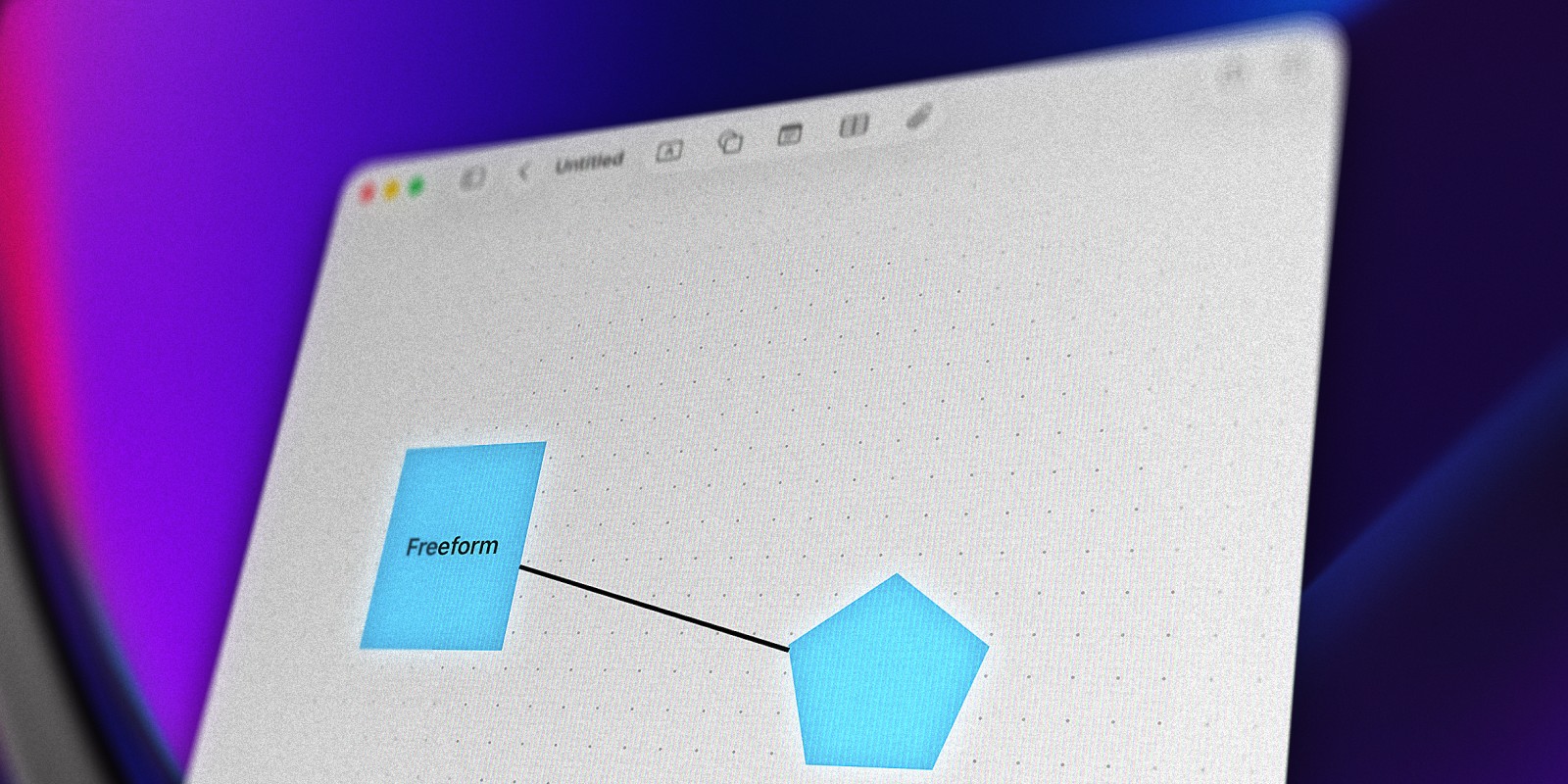
Apple's own Freeform is a free infinite canvas app that comes with macOS. It supports sticky notes, shapes, images, links, and freehand drawing, and syncs across all Apple devices via iCloud. Real-time collaboration with other Apple users is built in.
Freeform's strength is that it's already installed and deeply integrated with the Apple ecosystem. Its weakness is that it's a whiteboard — there's no concept of tasks or structured notes. It's great for a quick brainstorm or a shared sketch, but it doesn't help you manage work. Once the session is over, Freeform boards tend to become archives you never return to. Our Freeform vs Forma comparison breaks down exactly where it falls short.
Best for: Quick brainstorms, collaborative sketching, Apple ecosystem users who need something free.
Muse: Deep Thinking, Mac and iPad
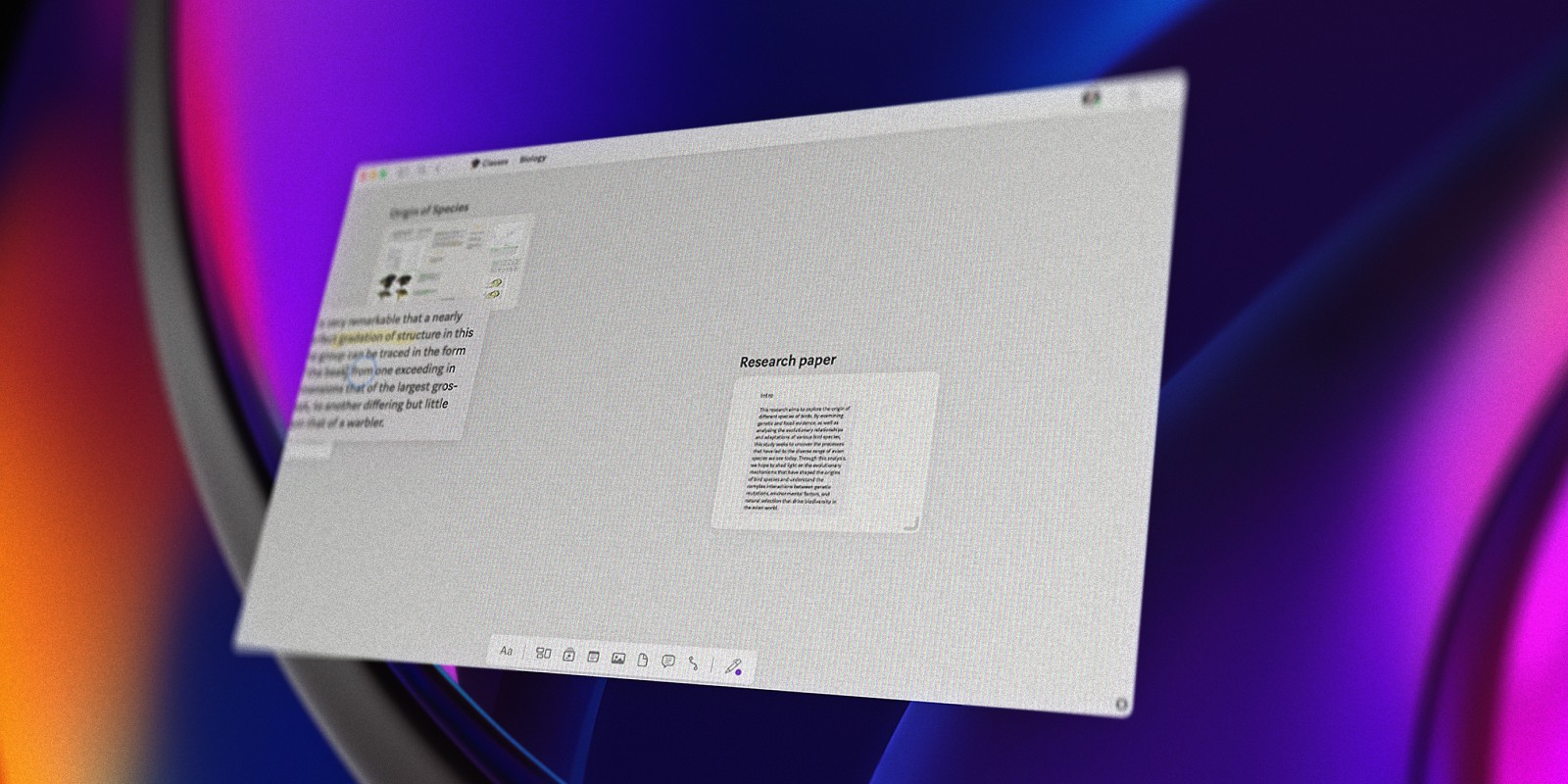
Muse is a thoughtful spatial canvas for Mac and iPad. It's designed around the idea of deep work — collecting PDFs, images, notes, and sketches on a board and working through them slowly. It supports nested boards, Apple Pencil, and has a minimal, focused interface that gets out of your way.
Muse has evolved into a fully cross-platform experience, with the Mac and iPad versions now on equal footing. The free tier is limited to 100 cards; beyond that it requires a subscription at $9.99/month, or access through Setapp.
The subscription also means your data lives in Muse's cloud. For some that's a feature; for others it's a reason to look elsewhere.
Best for: Researchers, deep readers, people who work across Mac and iPad.
Milanote: Visual Boards for Creative Teams
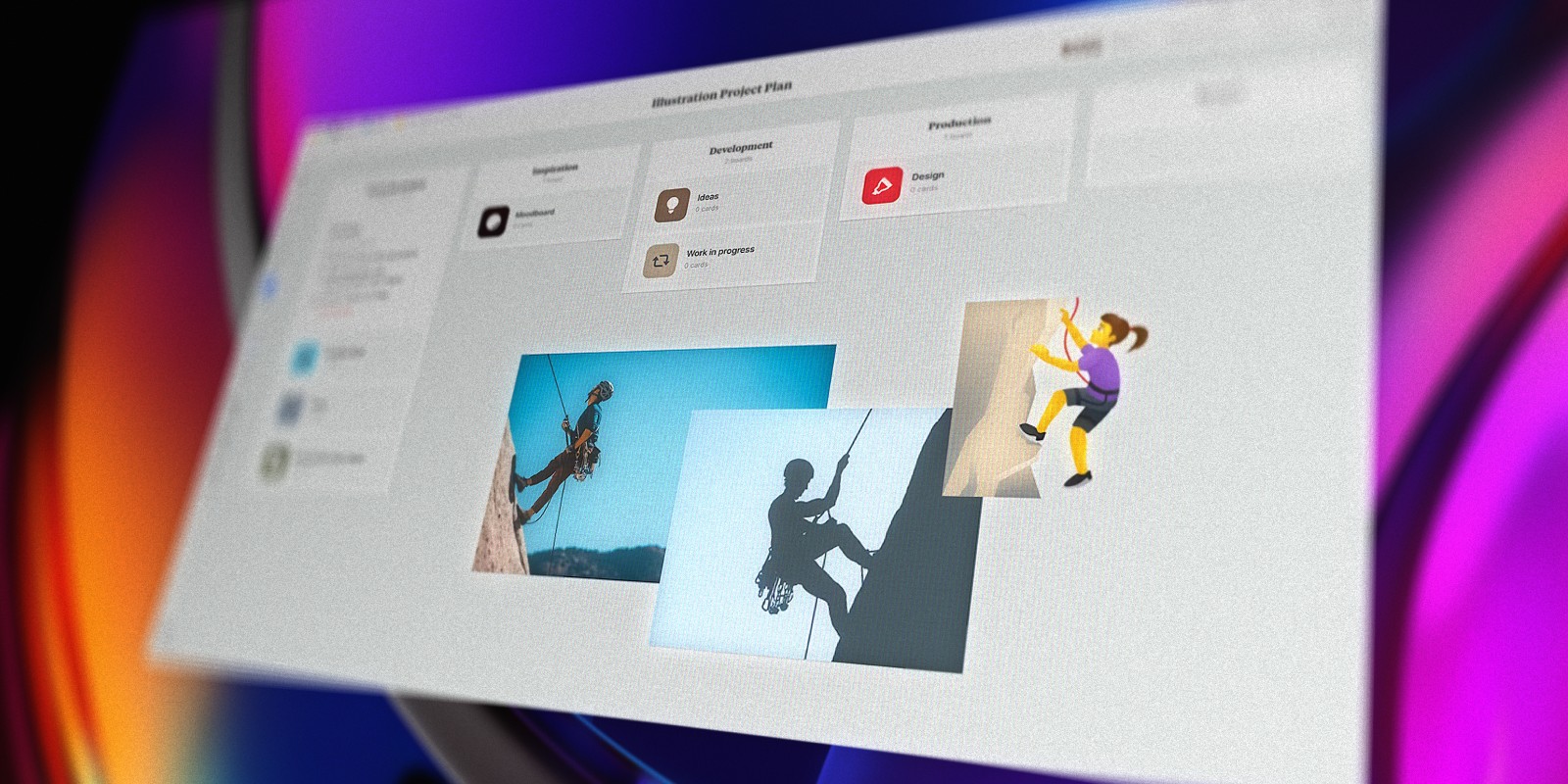
Milanote is a web-based canvas designed for creative professionals — designers, marketers, filmmakers — who want to collect references, build mood boards, and share work with a team. It has a polished drag-and-drop interface and supports images, notes, links, tasks, and file uploads on a flexible canvas.
Because it's web-based, it works in any browser but doesn't feel native to macOS. The free plan is capped at 100 notes and 10 file uploads. The paid plan is $9.99/month billed annually, and since it's cloud-hosted, your boards live on Milanote's servers.
For collaborative creative work it's hard to beat. For a solo Mac user who wants something fast and local, it's more than you need.
Best for: Creative teams, mood boarding, collaborative visual briefs.
Forma: Canvas-First, Task-Aware, Mac-Native
All the apps above are good at one thing: giving you a visual surface to work on. Forma goes a step further by making that surface a place where you can actually manage work — not just think about it.
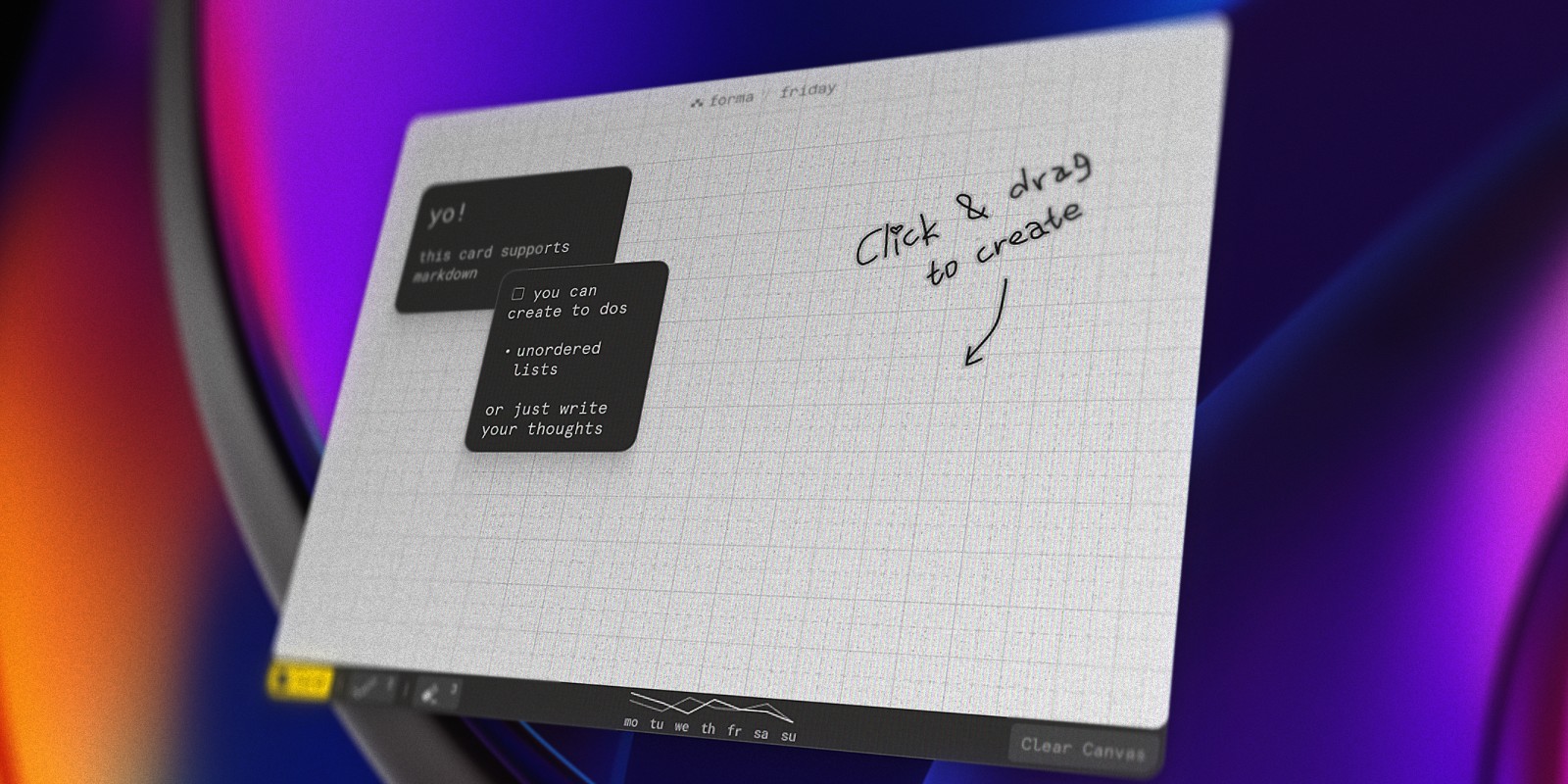
It's a native macOS app built around a canvas where you place cards — each one a note, a task, or both. You can drag them into clusters, group related ideas visually, and see your whole project in space rather than in a list. There's no subscription and no account required, and your data syncs securely across your Macs through Apple's own iCloud servers by default — you can turn that off in settings and keep everything on one Mac.
What makes Forma different from the other apps here is the relationship between notes and tasks. In most setups, those are separate things — a canvas tool for thinking, a task manager for doing. In Forma, a card can be a thought that becomes an action item, all in the same place. For people who think visually and find linear lists limiting, that changes how planning feels. If you're choosing a tool specifically for planning projects, our comparison of visual project planning software goes deeper.
It was built by a product designer, and the attention to detail shows — keyboard shortcuts, grid snapping, card stacking, and a spatial layout that actually holds up for real projects, not just quick brainstorms.
Best for: Visual thinkers, solo project management, Mac users who want notes and tasks on a canvas without a subscription.
Summary
The honest answer is that most canvas apps are built for one use case: whiteboarding. They're great for a brainstorm session, but they don't help you follow through. Once you need to track tasks alongside your ideas, you end up juggling two apps.
If you're a Mac user who thinks spatially and wants everything in one place, Forma is worth a serious look. It's a one-time purchase, keeps your data local, and is the only canvas app here that treats notes and tasks as the same thing.
If what you actually want is a pure drawing-and-diagramming surface rather than a notes-and-tasks workspace, it's worth reading our comparison of the best whiteboard apps for macOS instead — Miro, FigJam, and Excalidraw are built specifically for that.