Sticky notes on your Mac desktop are one of the simplest productivity tricks there is — a reminder you can't miss, a to-do list that's always in view, a phone number you need for the next ten minutes. Every Mac can do it out of the box, but the built-in options are hidden enough that most people never set them up properly.
The quick answer: open the Stickies app (press ⌘ Space, type "Stickies", and press Return), then press ⌘N to create a new sticky note on your desktop. To keep it visible above other windows, choose Window → Float on Top. To make your notes come back after a restart, add Stickies to System Settings → General → Login Items & Extensions.
This guide walks through every way to put sticky notes on a Mac desktop — Stickies, desktop widgets, and Quick Note — plus how to keep notes on top, show them on every desktop, and make them look the way you want. All of it works on MacBook Air, MacBook Pro, iMac, and Mac mini.
Method 1: Use the Built-In Stickies App
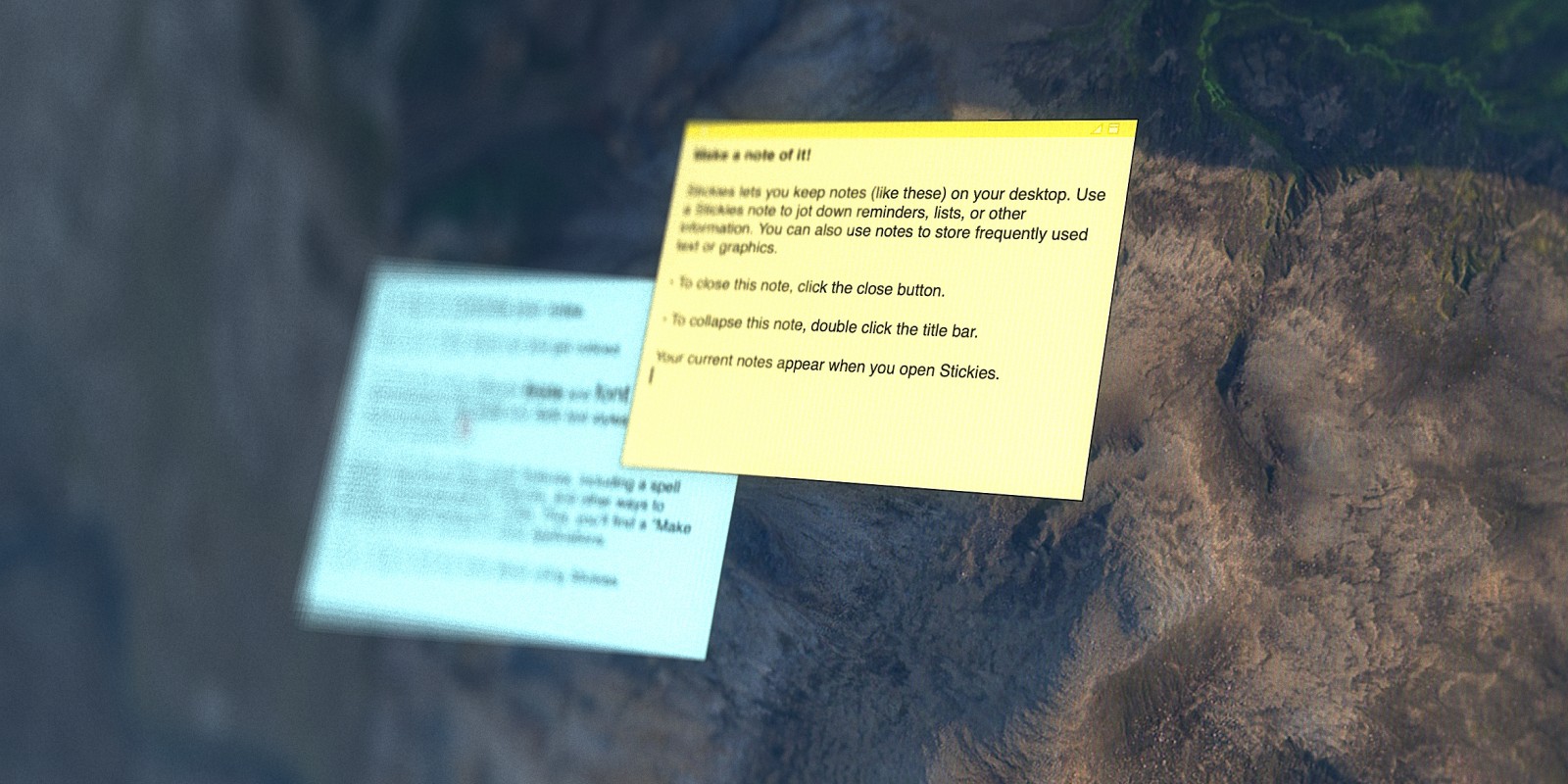
Stickies has shipped with the Mac since 1994, and it's still the most direct way to put a sticky note on your desktop. It's free, already installed, and saves everything automatically.
Step 1: Open Stickies
Press ⌘ Space to open Spotlight, type Stickies, and press Return. You can also find it in your Applications folder. A few sample notes may appear the first time you open it — you can close them with the button in their top-left corner.
Step 2: Create a new sticky note
Press ⌘N or choose File → New Note. A yellow note appears on your desktop. Click inside it and start typing. There's no save button — Stickies saves as you type.
Step 3: Move and resize it
Drag the note by its top bar to put it anywhere on your desktop. Drag the bottom-right corner to resize it.
Step 4: Change the color
Choose a color from the Color menu — yellow, blue, green, pink, purple, or gray. Color-coding by topic (work, personal, urgent) makes a desktop full of notes much easier to scan.
Step 5: Keep it on top of other windows
Select the note and choose Window → Float on Top. That note now stays visible above every other app, so it doesn't disappear behind your browser. Choose Window → Translucent as well if you want to see what's behind it.
Step 6: Make your notes come back after a restart
Stickies notes only appear while the app is running, so they vanish if you quit Stickies or restart your Mac. To have them reappear automatically, go to System Settings → General → Login Items & Extensions, click + under "Open at Login", and choose Stickies. On older versions of macOS the section is just called "Login Items".
Step 7: Show your notes on every desktop
If you use multiple desktops (Spaces), Stickies notes stay on the one where you opened the app. To see them everywhere, right-click the Stickies icon in the Dock while it's open, choose Options → All Desktops.
Step 8: Keep the desktop tidy
Double-click a note's title bar to collapse it into a single line; double-click again to expand it. To line up a messy desktop, use Window → Arrange By to sort notes by color, content, or date.
Method 2: Add a Notes Widget to Your Desktop
Since macOS Sonoma, you can place widgets directly on your desktop, and the built-in Notes app has one that works like a synced sticky note widget for Mac.
Step 1: Open the widget gallery
Right-click any empty part of your desktop and choose Edit Widgets.
Step 2: Add the Notes widget
Search for Notes, choose the Note widget (one note) or the Folder widget (a list of notes), pick a size, and drag it onto your desktop.
Step 3: Choose which note it shows
Right-click the widget, choose Edit Note, and select the note you want — a to-do list, a shopping list, your priorities for the week.
The Notes widget has two big advantages over Stickies: it updates as you edit the note on your iPhone or iPad, and it survives restarts without any setup. The trade-offs are that you can't type directly into it — clicking opens the Notes app — and widgets sit behind your app windows, so you only see it when the desktop is visible.
If you use a sticky note app on your iPhone, its widgets can also appear on your Mac desktop. Look for them in the same widget gallery under your iPhone's name; both devices need to be signed in to the same Apple ID.
Method 3: Use Quick Note for Instant Notes
Quick Note is the fastest way to capture a thought without opening anything first. Press Globe (fn) + Q, or move your pointer to the bottom-right corner of the screen and click the small note that appears. A note window opens over whatever you're doing.
Quick Notes are saved in Apple Notes, so they sync to your iPhone and are searchable later. They don't stay pinned to your desktop the way Stickies do, but for jotting something down mid-task they're hard to beat. If the hot corner isn't set up, turn it on in System Settings → Desktop & Dock → Hot Corners and choose Quick Note.
How to Make Aesthetic Sticky Notes on Mac
Stickies looks plain by default, but a few settings make a big difference.
Pick a better font. Choose Font → Show Fonts (or press ⌘T) and switch to a font you like — a rounded or handwritten-style font instantly makes notes feel less like a system dialog. Bump up the size so notes are readable at a glance.
Use color with intent. Stick to two or three colors that match your wallpaper, and give each a meaning, rather than using all six at random.
Add images. Drag an image or a small screenshot straight into a note. It's a simple way to make a mood board or a visual reminder.
Use translucency. Translucent notes blend into your wallpaper and feel less heavy on screen.
Keep the count low. The most aesthetic desktop is a calm one. Three or four well-placed notes look intentional; twenty look like clutter.
When Desktop Sticky Notes Stop Working
Desktop sticky notes are great for a handful of reminders. They start to break down when you use them for real projects:
They pile up. Each note is a separate window, and there's no way to group related notes or put them in folders.
They don't hold tasks. You can type a checklist, but you can't tick things off, see what's done, or turn a note into an action item.
They're stuck on one Mac. Stickies doesn't sync, so notes on your MacBook aren't on your iMac.
They compete with your windows. Notes either float over your work and get in the way, or sit behind it and get forgotten.
At that point, the problem isn't finding a better sticky notes app — it's that a desktop is a poor place to organize a project. For a comparison of apps that go further than Stickies, see our guide to the best sticky notes apps for Mac.
A Better Home for Your Sticky Notes: Forma
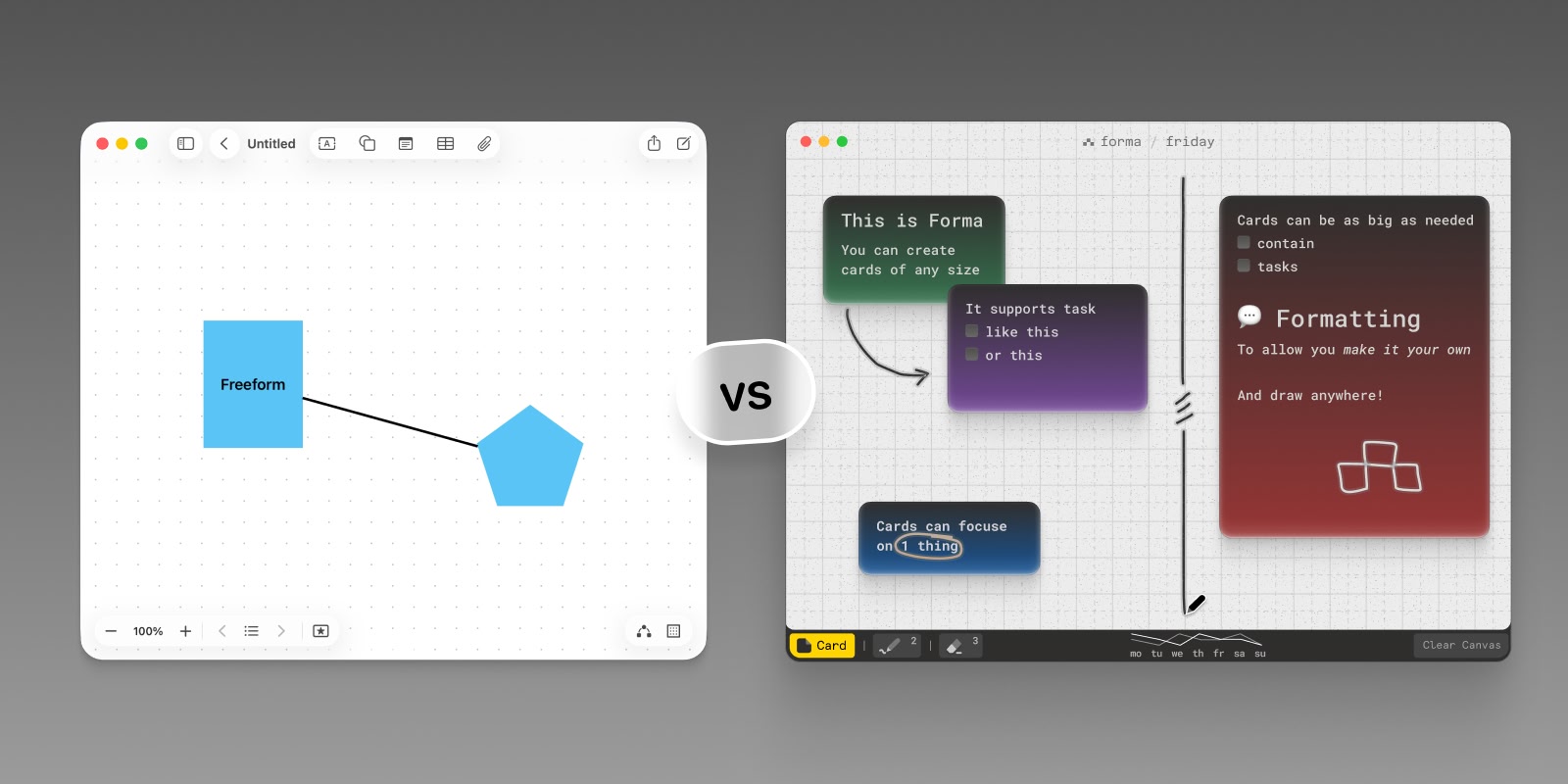
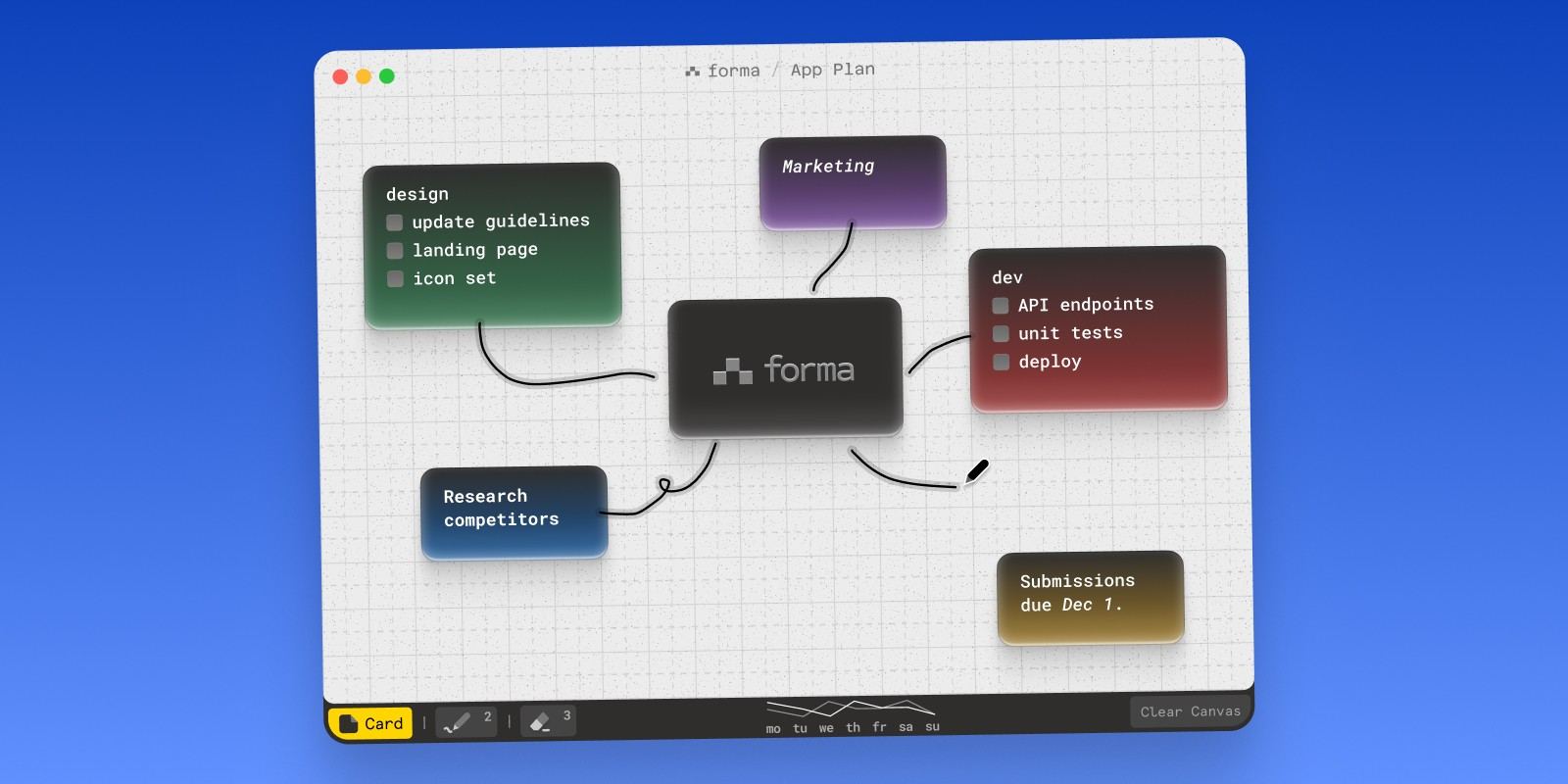
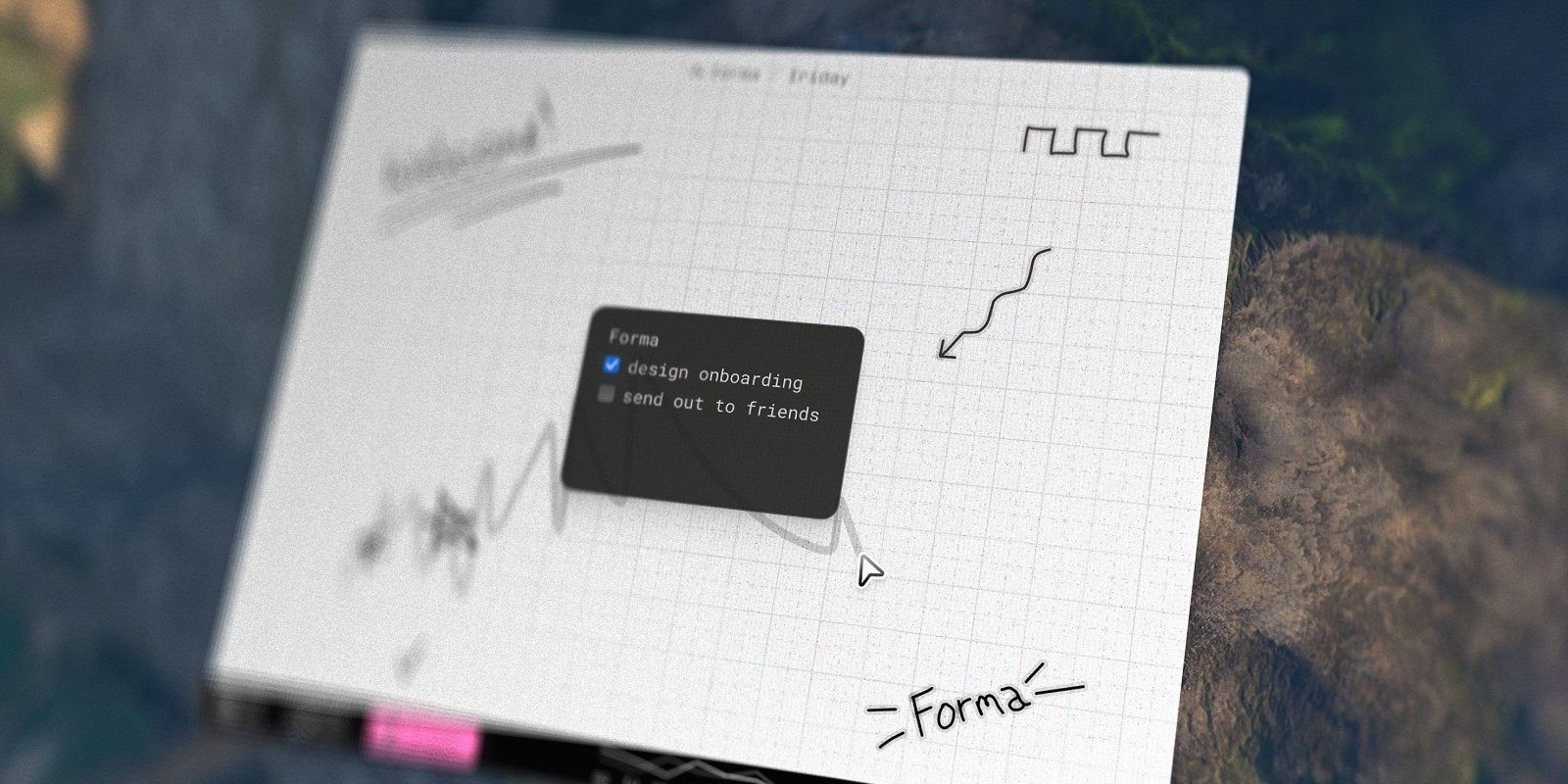
Forma is a native Mac app that gives your sticky notes a dedicated space instead of your desktop. Think of each board as a clean desktop for one project: you click and drag to create a card anywhere, move it wherever it makes sense, and arrange cards into clusters, columns, or whatever layout fits how you think.
It fixes exactly the things that make desktop sticky notes frustrating:
Notes and tasks on the same canvas. Every card can be a note, a task, or both — so a to-do list becomes something you can actually tick off, and a quick idea can turn into an action item without moving it anywhere.
Color cards. Click a card and pick a color to code by priority, project, or anything else — the same instinct as colored sticky notes, without the window clutter.
Draw on the board. A marker tool lets you circle, underline, and sketch arrows next to or over your cards, like scribbling on a whiteboard full of post-its.
Separate boards per project. Instead of one crowded desktop, each project gets its own board, and you switch between them in a click.
Synced between your Macs. Boards sync through iCloud, so your notes on your MacBook are also on your iMac. You can turn sync off if you'd rather keep everything on one Mac.
Always there when you start your Mac. Forma can launch at login, so your boards are waiting for you — no Login Items setup needed.
Forma works fully offline, needs no account, and is a one-time purchase on the Mac App Store with no subscription. It isn't a floating-note app — your boards live in Forma's window rather than on top of other apps — but if your desktop is covered in sticky notes because you're trying to keep a project in view, Forma is built for exactly that. For more ways to lay out a project visually, see our guide to visual project planning software.