If you've ever had more than a few sticky notes scattered across your desktop, you already know the problem. What starts as a quick reminder becomes a pile of floating windows you constantly click through, minimize, or forget about entirely. The built-in Stickies app has been part of macOS since 1994 — and while it still works, it hasn't meaningfully changed in years.
The good news: the category has evolved significantly. Whether you want classic desktop post-it notes for Mac, a lightweight menu bar widget, or something that treats notes as part of a bigger workspace — there are solid options in 2026 that fit how you actually work. If your sticky notes are turning into something closer to a knowledge base you keep coming back to, our guide to the best notes apps for Mac covers that more structured end of the spectrum.
Here's a breakdown of your best options, organized by what kind of user you are.
macOS Stickies: The Default Desktop Sticky Notes
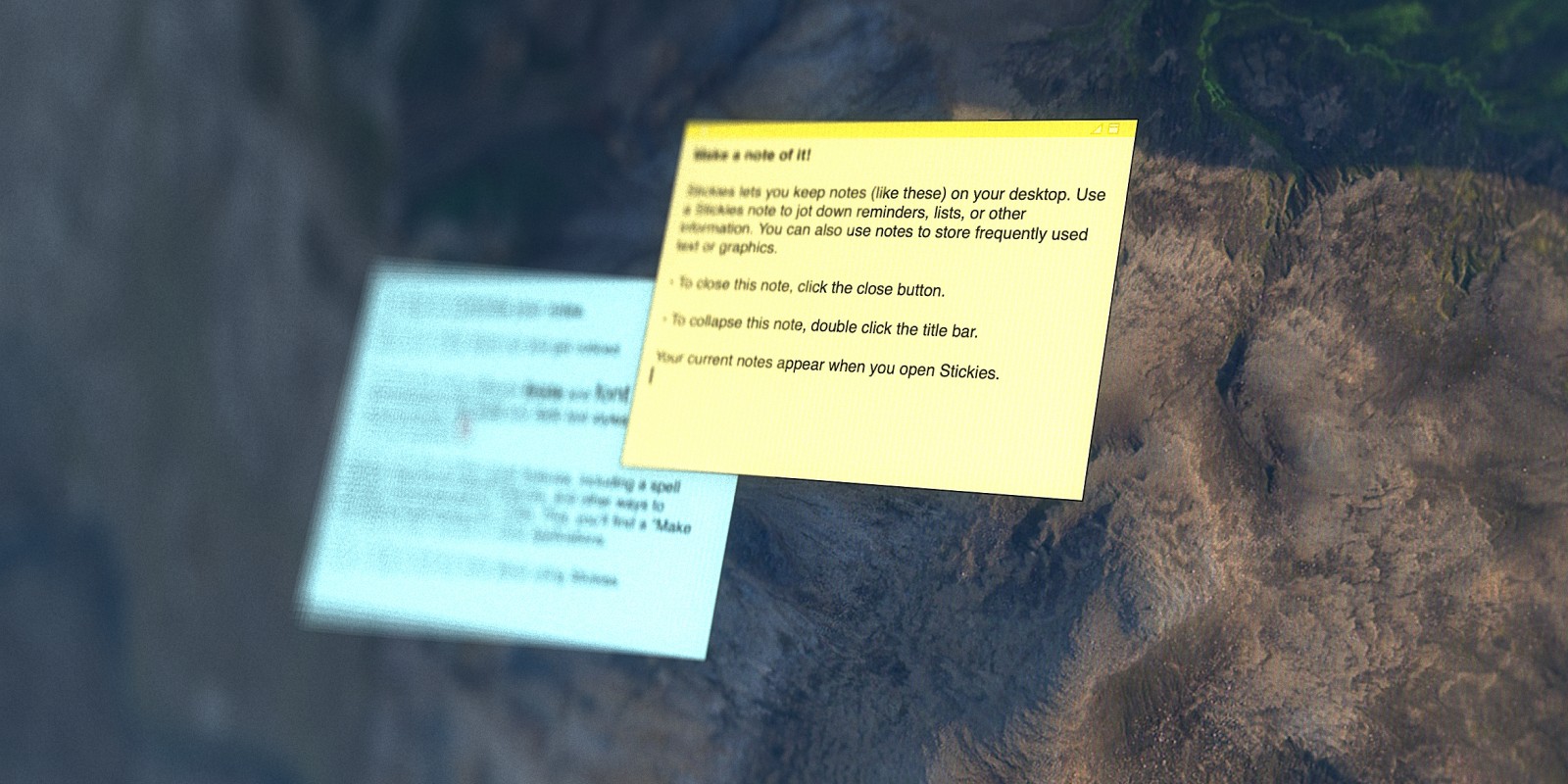
Apple's built-in Stickies app is the original desktop sticky notes experience on Mac. Open it, press ⌘N, and a colorful floating note appears on your desktop. It auto-saves, supports images and PDFs, lets you float notes above other windows, and is completely free.
The catch: it hasn't received a meaningful update in years. There's no iCloud sync, no mobile companion app, no tags or search across notes, and the interface feels dated. If you close the app, your notes vanish from the desktop until you reopen it. It works fine for a single screen setup with a handful of notes — but start accumulating them, and things get messy fast.
Best for: Occasional use, zero-friction note capture, users who want desktop post-it notes already installed with no setup.
Tot: The Menu Bar Sticky Notes Widget
Tot by The Iconfactory takes a different approach. Instead of floating desktop windows, it lives in your menu bar as a sticky notes widget — click the icon and you're instantly typing. It gives you exactly seven color-coded text documents, supports plain text and Markdown, syncs via iCloud across Mac, iPhone, iPad, and Apple Watch, and the Mac version is free (with paid premium features available).
Tot's value is in what it doesn't try to be. It's not a notes app — it's a scratchpad. The seven-note limit is a deliberate constraint that forces you to treat content as temporary: a draft message, a phone number you need for 10 minutes, an idea before it goes somewhere permanent. If you're the type who ends up with dozens of untitled documents open in TextEdit, Tot solves exactly that problem.
The limitation is the same as the strength: seven notes is all you get. There's no organization, no search across content, no tasks. Once you've filled up your seven slots, you're clearing old content to make room.
Best for: Text buffers, quick capture, ephemeral notes that don't need to live anywhere permanently.

Bear: For Writers and Structured Notes
Bear is arguably the most polished dedicated notes app in the Apple ecosystem. It's a Markdown editor with a clean three-panel interface, nested tag organization, note linking with WikiLinks, and export to PDF, HTML, DOCX and more. It won the Apple Design Award in 2017 and has continued to earn praise for feeling genuinely native to the platform.
Bear is free with limited features. Bear Pro — which includes iCloud sync across devices, themes, and advanced export — costs $2.99/month or $29.99/year. A web version is currently in public beta.
For writers, researchers, or anyone building a personal knowledge base, Bear is excellent. But it's a different tool than sticky notes. Opening Bear requires context-switching into a note-taking environment. You're working inside a document structure, not dropping a quick thought somewhere and moving on. It's more like a notebook than a notepad.
Best for: Writers, students, anyone who takes lots of structured notes and wants them linked and searchable.
Forma: When Your Notes Need to Go Somewhere
All the apps above treat notes as text — something you write down and retrieve later. Forma treats them as objects you can move, arrange, and connect on a spatial canvas.
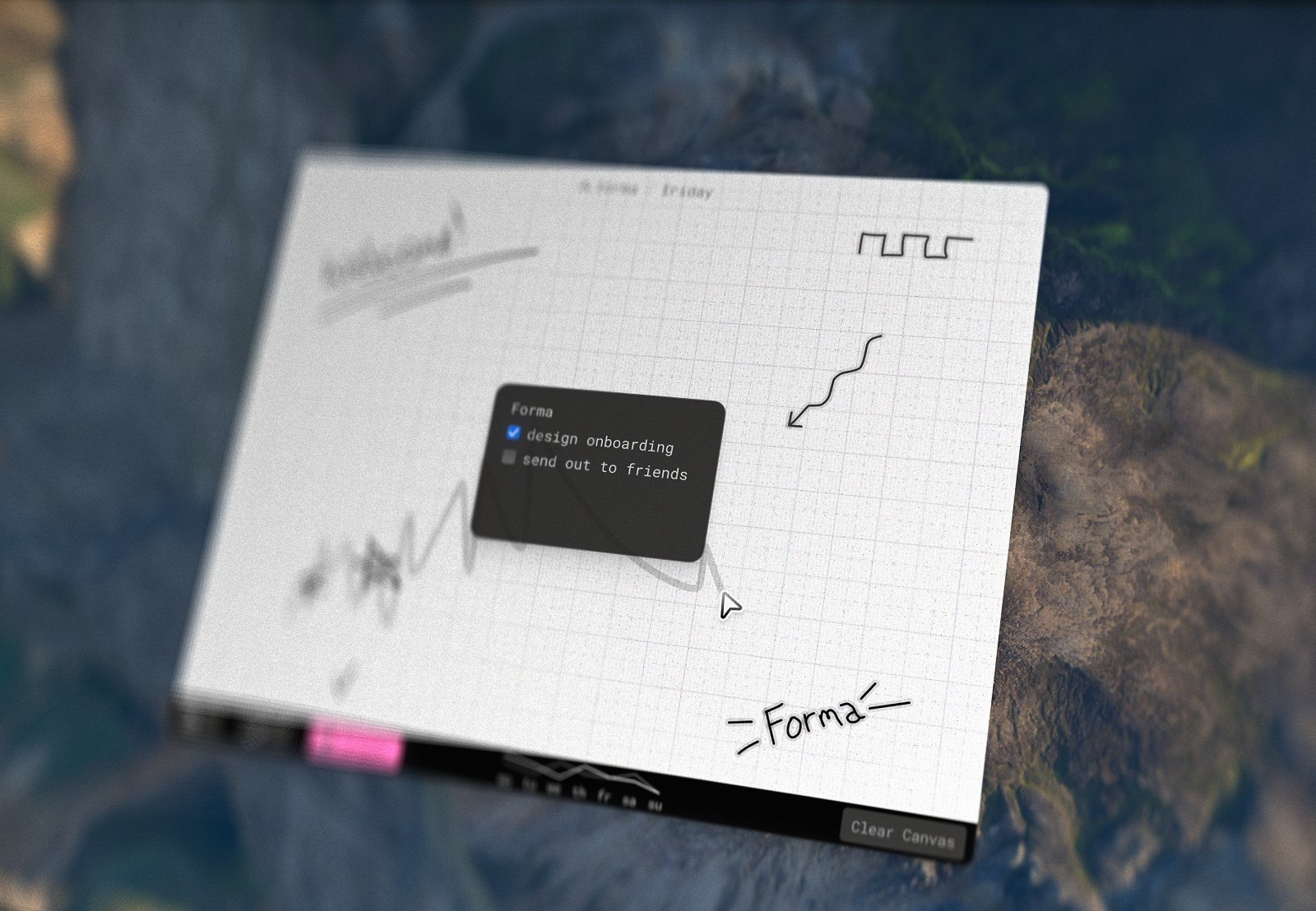
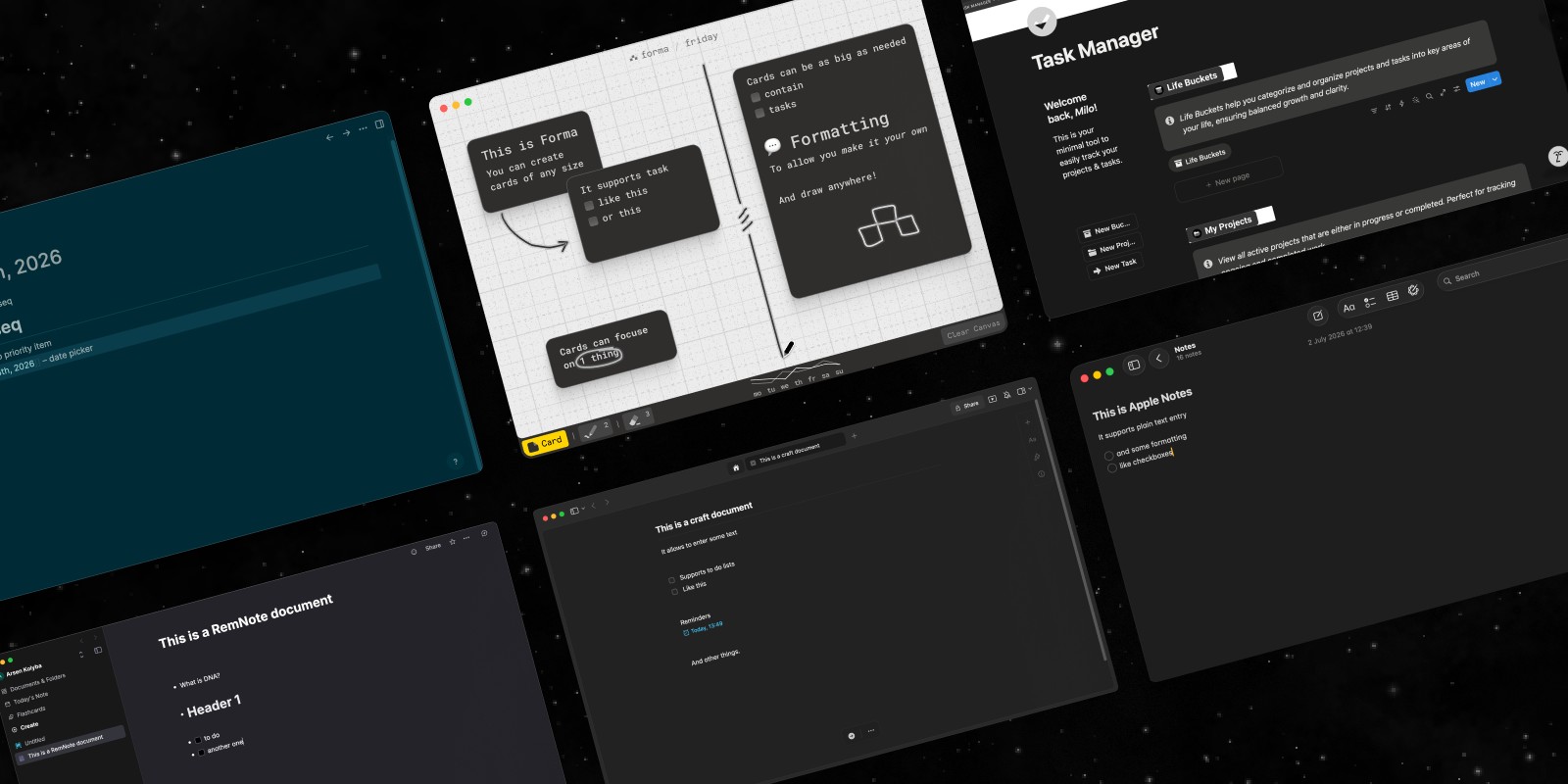
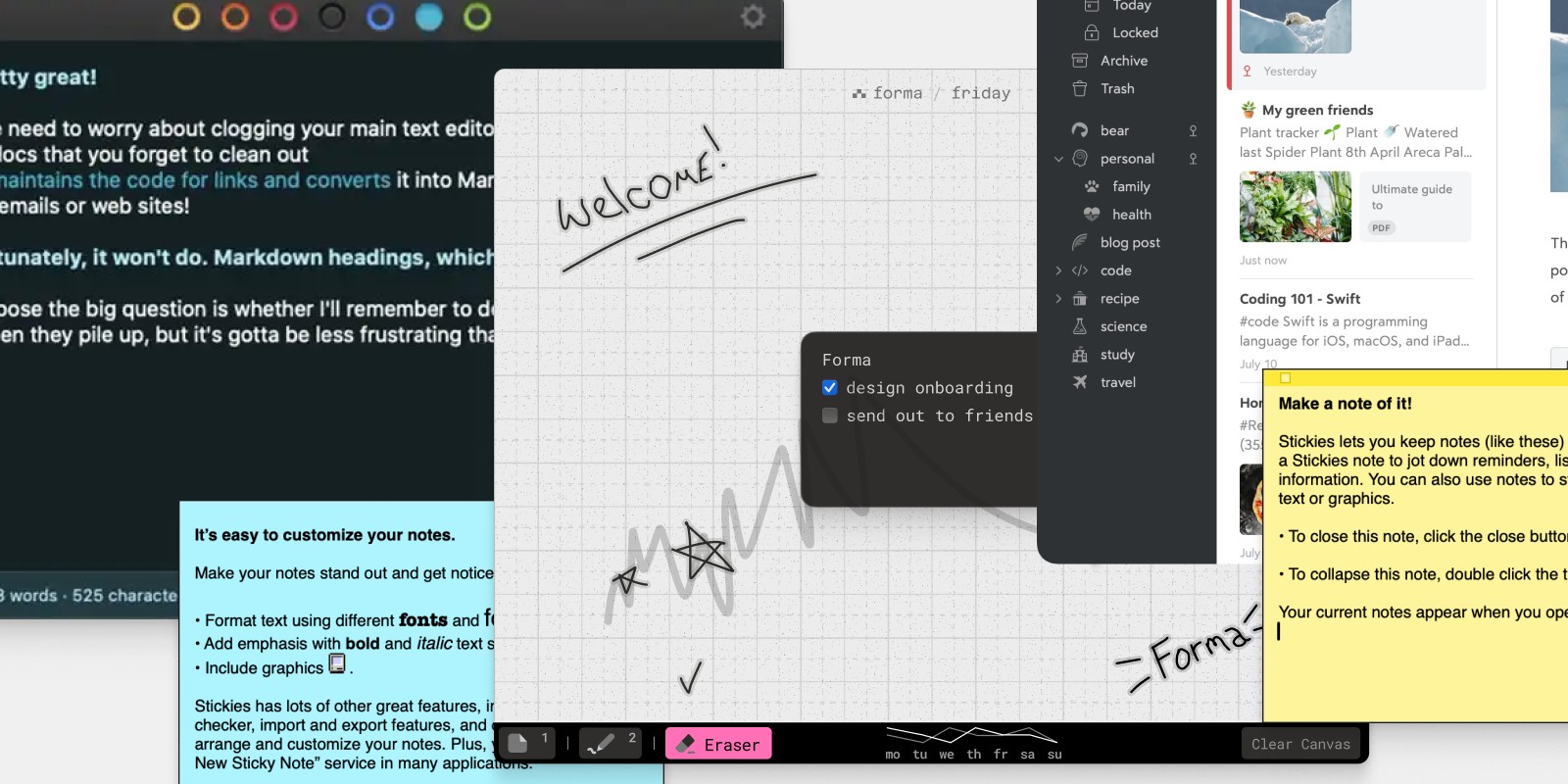
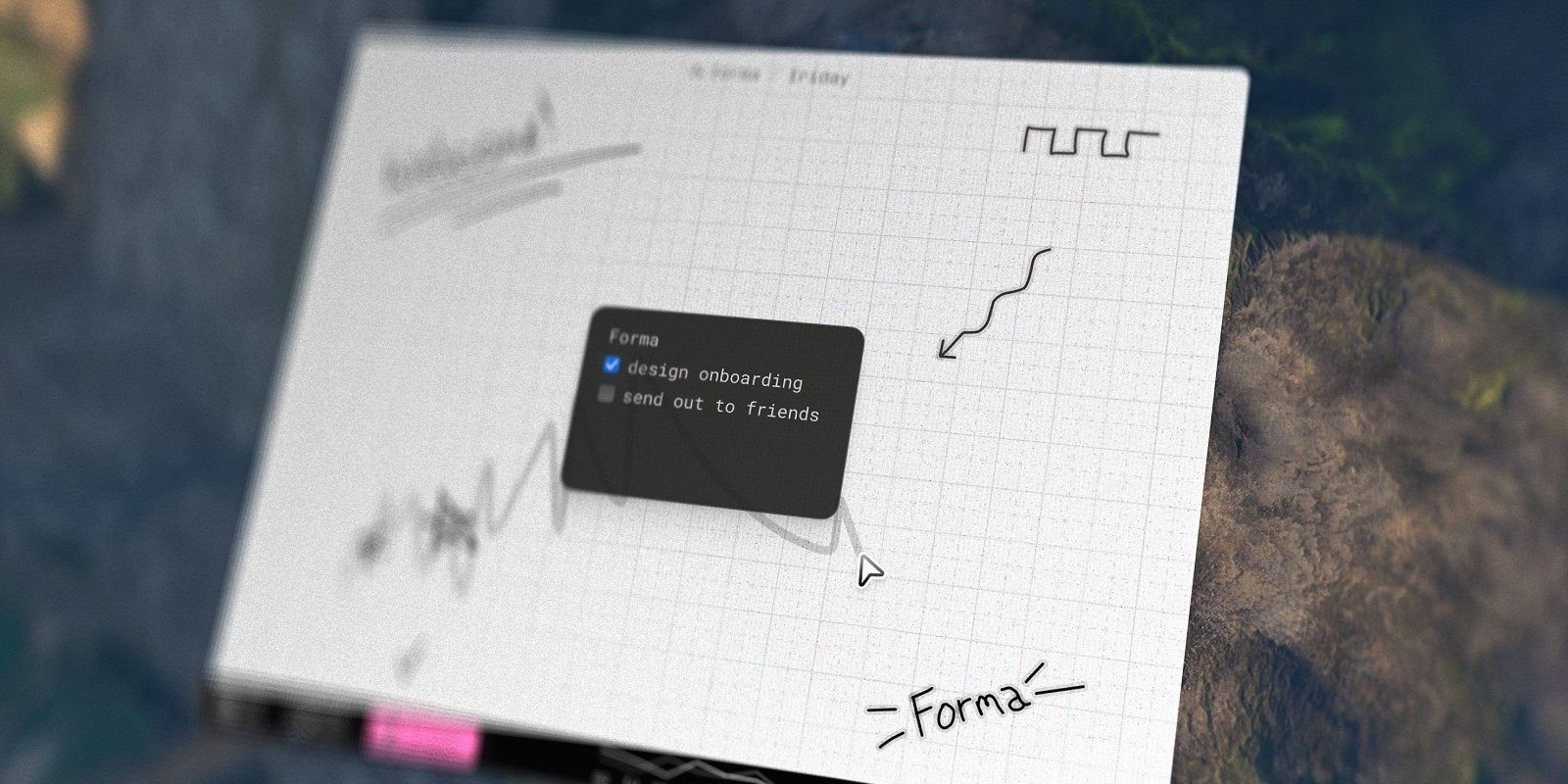
It's a native macOS app built around a spatial canvas where you place cards — each one a note, a task, or both. You can drag them into clusters, group related ideas visually, and see your whole project in space rather than in a list. There's no subscription and no account required, and your data syncs securely across your Macs through Apple's own iCloud servers by default — you can turn that off in settings and keep everything on one Mac. It was built by a product designer, and the attention to detail shows.
What makes Forma different from the other apps here is the relationship between notes and tasks. In most apps, those are separate things — you'd have Bear for notes and something else for tasks. In Forma, a card can be a thought that becomes an action item, all in the same place. For people who think visually and find linear lists limiting, that flexibility changes how planning feels.
It's not a floating sticky note app in the traditional sense — it's a workspace. But if the reason you keep reaching for sticky notes is to externalise how you're thinking about something, Forma is worth a serious look.
Best for: Visual thinkers, solo project management, anyone who organizes ideas spatially and wants notes and tasks in one place.
Summary
The honest answer is that most people outgrow floating sticky notes before they realize it. Once you're using notes to think through projects — not just remember a password or a to-do — the spatial approach starts to make a lot more sense.
If you haven't tried it, Forma is a solid choice for visual thinkers that love to organize their space.